AI Video Editing Free: 8 Tools Compared for 2026
AI video editing free options compared by watermarks, export limits, credits, and commercial use rules. Find the right free plan for your footage in 2026.
You've filmed a 45-second talking-to-camera ad on your phone. It needs the pauses cut, captions added, and a clean export today, ideally without opening desktop software or paying for another subscription. AI video editing free plans look like the obvious answer until you reach export and find a watermark, a 720p cap, or the captions you wanted locked behind credits.
That's why this comparison doesn't rank tools by the longest feature list. Each plan is judged on one practical question, what can you publish without paying? We'll look at export resolution, watermarks, credit systems, and which AI tasks are free, because those limits decide whether a tool works for real footage.
The demand isn't fringe anymore. The Interactive Advertising Bureau figures reported by Mark Studios put AI-built or AI-enhanced creative at 22% of video advertising creative in 2024, projected to reach approximately 39% to 40% by 2026. Use the list below to match the free plan to the footage you shoot, not to a polished sample project. If you deliver client work, test with a rough take, export it, and watch the file before you commit your workflow.
1. Microsoft Clipchamp
If you want a free export you can post, Microsoft Clipchamp is the easiest place to start. Its free plan supports watermark-free exports up to 1080p, which already puts it ahead of several tools below. For beginners editing their own footage, social videos, screen recordings, or simple talking-head clips, that single limit matters more than fancy generation.
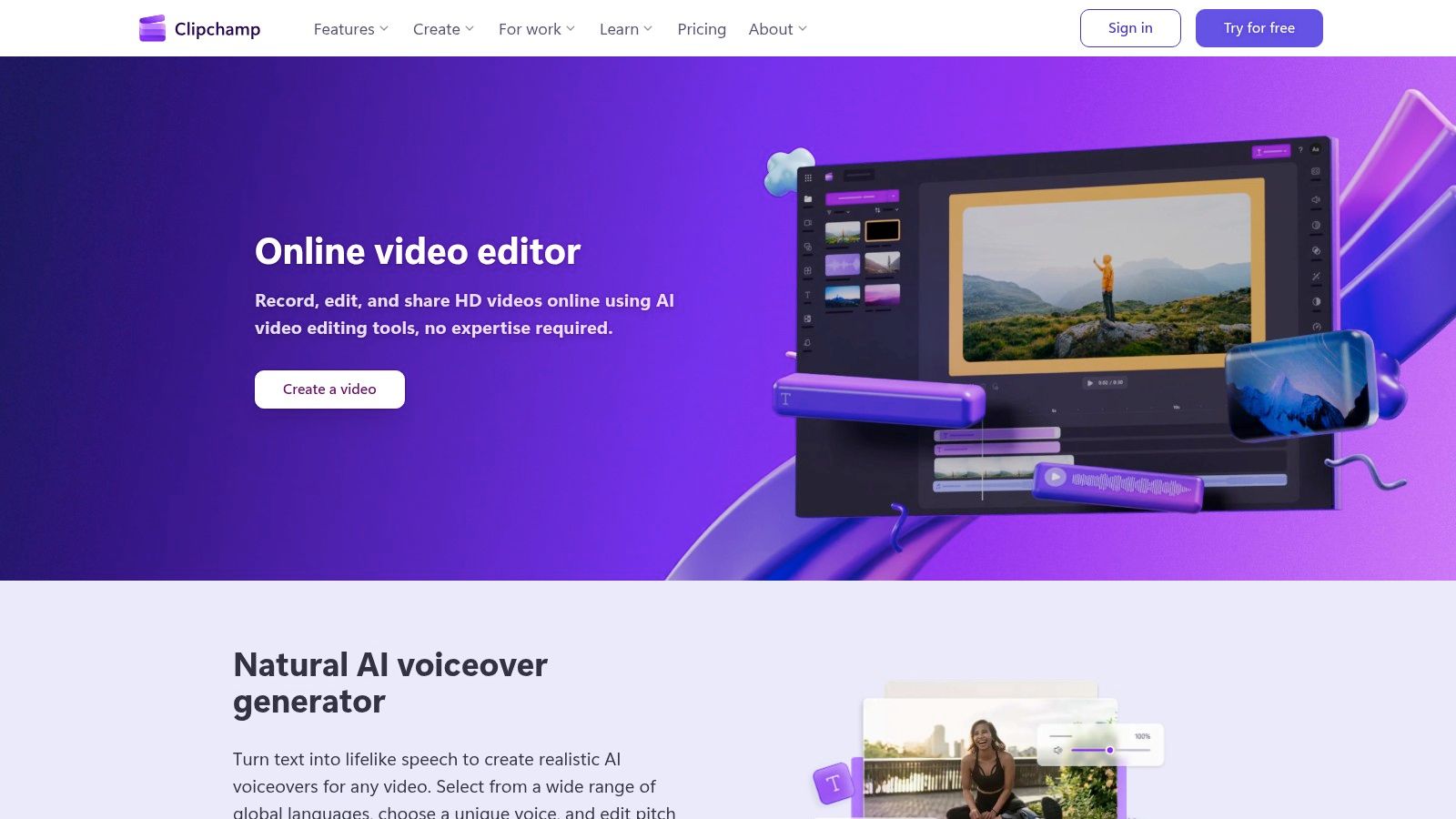
The editor runs in Chrome or Edge, with a Windows app if you prefer working outside a tab. The timeline is approachable without feeling like a toy, and you can trim, arrange, and check the cut yourself instead of accepting a one-click result blindly. That control helps when a hook needs to land in the first two seconds.
What the free AI does
- AI subtitles: Generate captions for dialogue without typing every line.
- Silence removal and voiceovers: Clean up pauses or add a generated voice track.
- Auto Compose: Assemble social-style videos from selected media when you need a fast draft.
The ceiling shows up on quality and assets. Free exports stop at 1080p, while 4K requires a paid plan, and premium stock media and some branding features require a subscription. Auto Compose also isn't ideal for precise, repeatable UGC work where every creator needs the same pacing and caption style. I recommend Clipchamp as a general-purpose free editor first, and a specialized AI editor second. If your output is mostly 1080p social footage, that's a workable trade.
2. CapCut
For quick vertical edits, CapCut understands the format better than most general editors. It works on mobile, desktop, and web, so you can start on the phone where you filmed and finish on a larger screen. Templates, effects, and caption-led layouts are built for TikTok, Reels, and Shorts rather than adapted afterward.
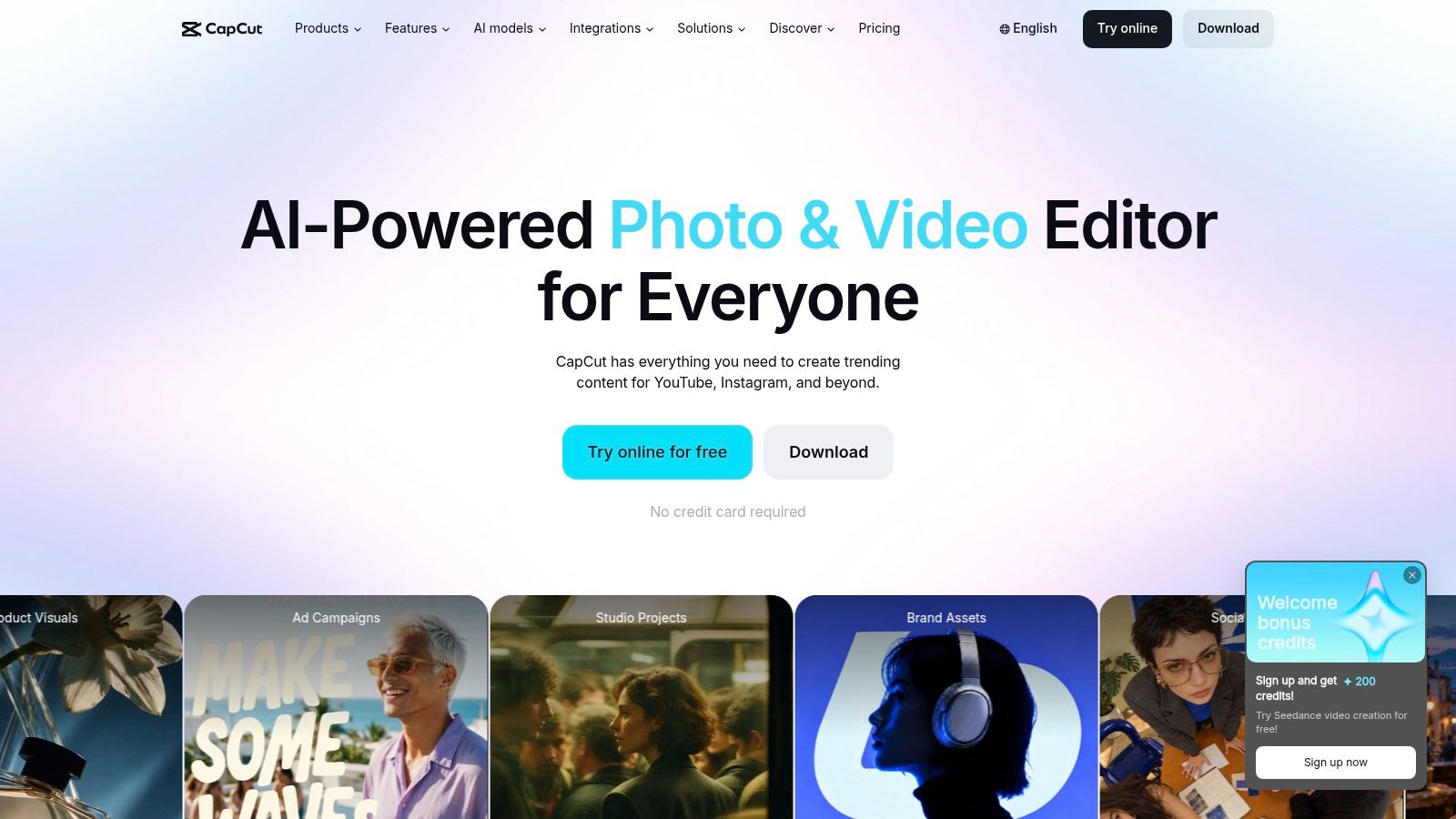
The free plan includes basic editing and free templates, which is enough for many short clips. AI-assisted subtitles, text-to-speech, and background removal can speed up the repetitive parts of production. You'll get a serviceable draft fast, especially if you're comfortable tweaking a template instead of building every text animation from scratch.
Check before you build: Confirm a template, effect, or AI tool is free in your version before you design the whole video around it.
That warning matters because some AI tools and premium templates are paid or credit-based, and features and plan details may differ by platform or region. A workflow that works free on mobile might not match what you see on the web. Template-heavy edits can also start to look familiar, so change the fonts, colors, timing, and opening frame if the video needs to stand out for a brand.
CapCut isn't the right fit if you need predictable, identical conditions across a team in different regions. It is a strong fit for a solo creator who shoots, captions, and posts from a phone and wants AI video editing free of a desktop setup.
3. Descript
Dialogue-heavy footage changes the editing problem. You're not hunting for visual cuts first, you're hunting for sentences. Descript lets you edit video by deleting or changing the transcript, so removing a spoken section feels like editing a document instead of scrubbing a timeline.
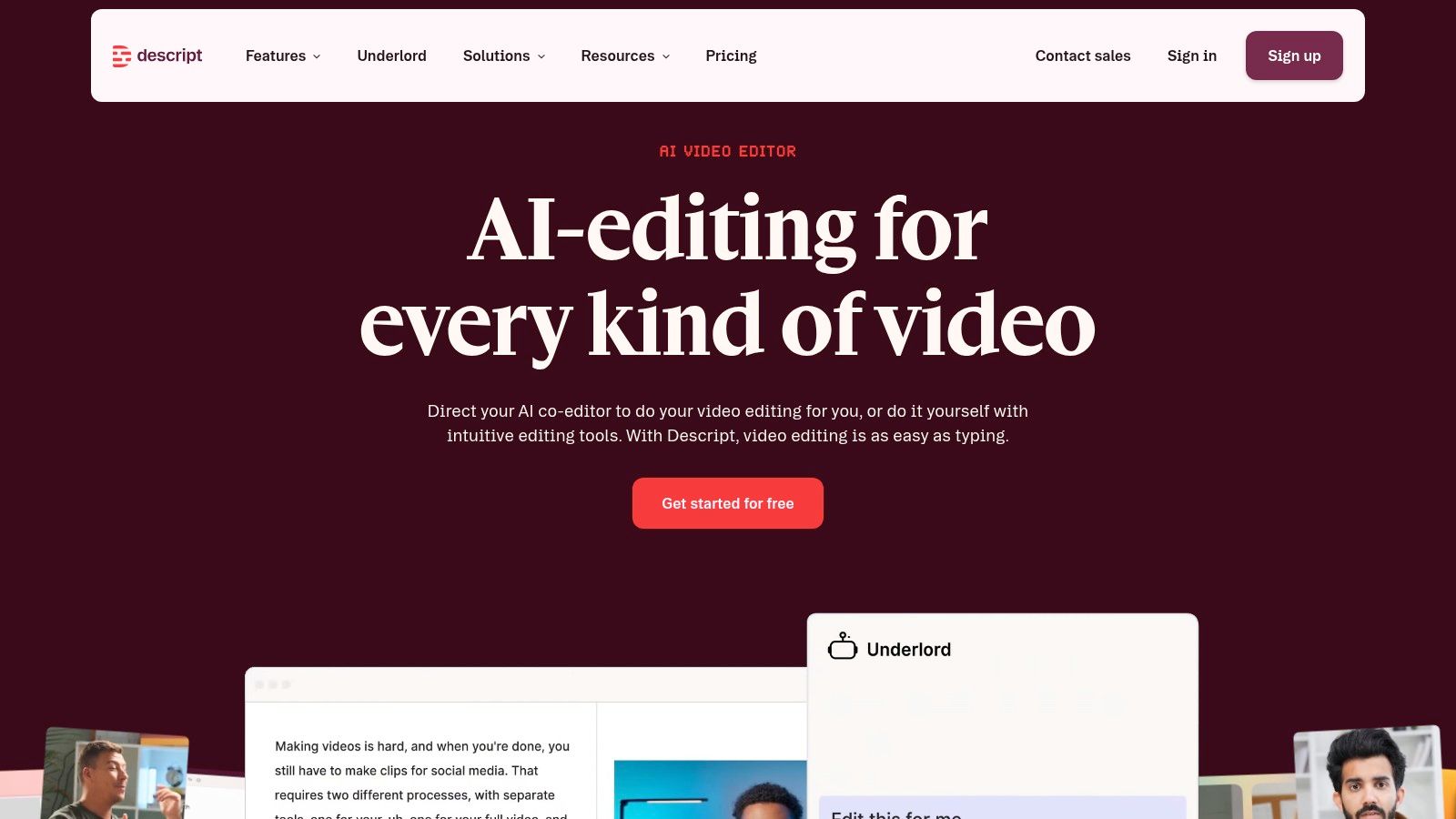
That approach suits interviews, explainers, podcasts, and talking-head recordings where the words carry the structure. Automatic transcription and captions, speaker detection, and recording tools sit in one product. When you need to remove filler words from video, working from text makes the repeated ums and false starts much easier to spot.
Where the free tier stops
The free tier is best treated as a trial of the workflow, not a publishing plan. Free exports are limited to 720p and include a watermark, and free transcription and AI usage are limited. Advanced AI co-editing features and higher-quality exports require a paid plan.
That's a clear trade. If you publish externally, especially for clients, a watermarked 720p file won't pass as a finished deliverable. But if you want to learn whether transcript editing saves you time on long recordings, the free tier answers that question quickly.
I recommend Descript when you regularly cut long, wordy recordings and expect to pay once the workflow proves itself. Don't build a recurring free publishing system around it.
4. Canva
Say your video problem is less about dialogue cleanup and more about making a clip look on-brand. Canva puts video, titles, thumbnails, and graphics in the same workspace, which helps you keep fonts and layouts consistent across posts. For creators without conventional editing experience, drag-and-drop design is easier to approach than a multitrack timeline.
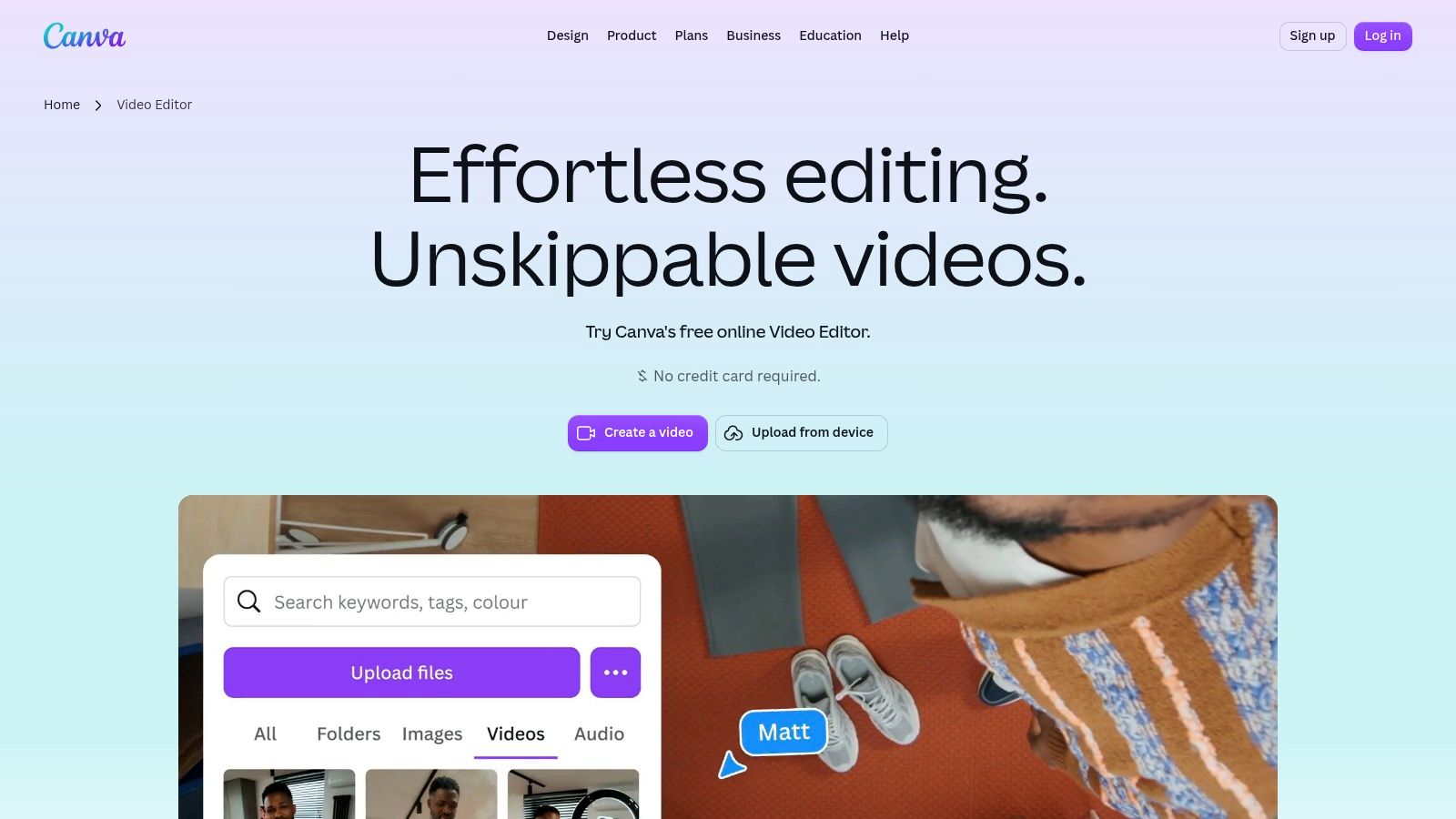
You can edit in a browser or on mobile, arrange clips into social layouts, and add design elements without exporting assets from another program. Magic Video is listed as available across Canva plans, including free, which makes Canva relevant to an AI comparison even though design comes first. It is useful for intros, title cards, product announcements, and simple promotional edits.
- Branded layouts: Reuse visual treatments across videos and static assets.
- Text and titles: Add formatted headings without learning a graphics program.
- Templates: Start from a social format instead of a blank canvas.
The limits are editorial. Some AI tools, assets, and features require a paid plan, and Canva is less suited to detailed cuts and dialogue cleanup than a dedicated editor. Tightening pauses word by word or rebuilding a spoken take will feel slow compared with transcript-based tools.
Template results also need customization if you don't want them to look generic. Pick Canva for designed social assets, not as your main tool for raw talking-to-camera footage.
5. Adobe Express
Short, design-led clips are where Adobe Express earns its place. You can trim, crop, merge, and resize clips in a browser or on mobile, with projects syncing across devices. Templates, titles, text overlays, and Adobe Stock audio assets help you turn a plain clip into a promotional post without installing desktop software.
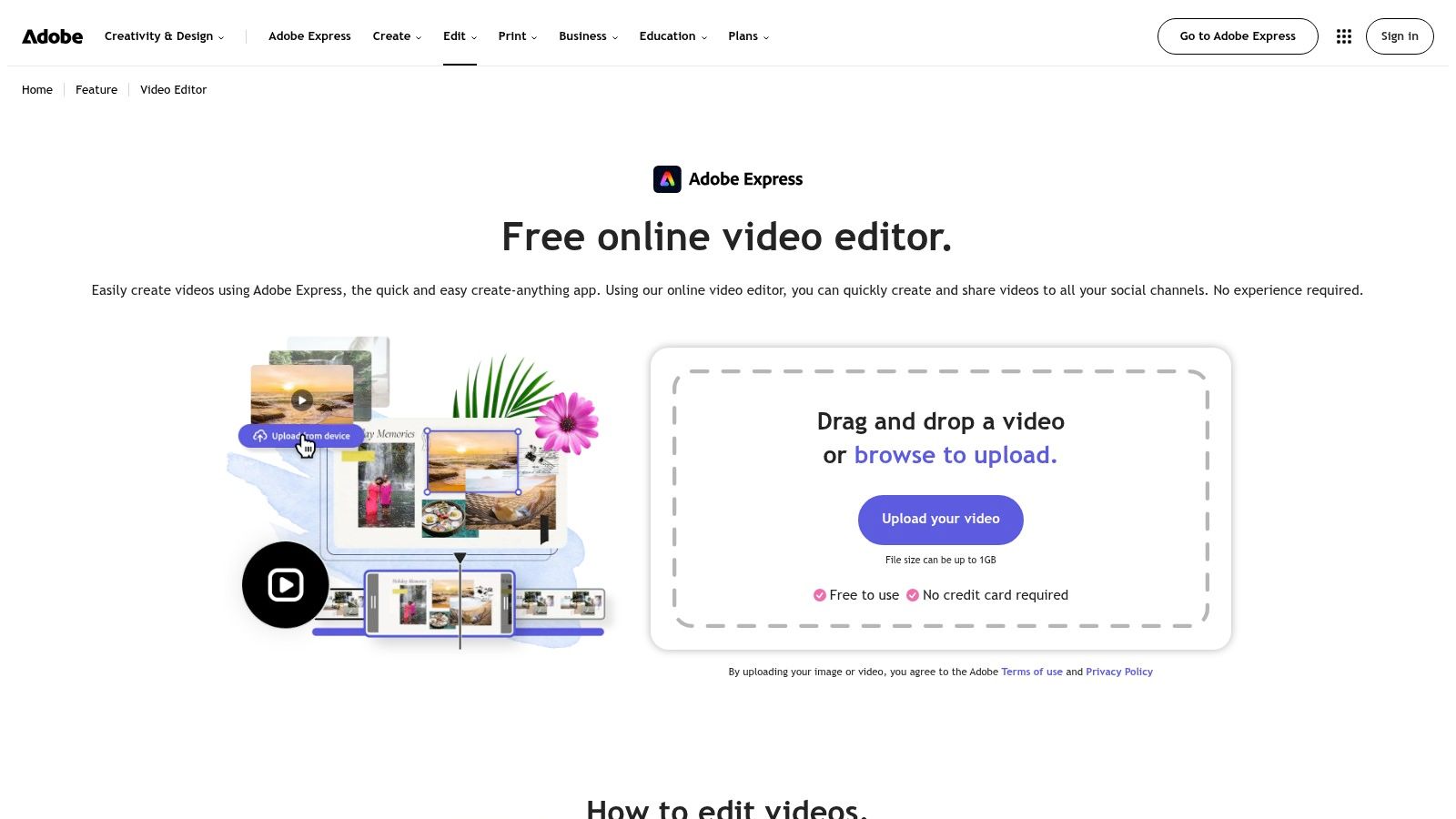
The free editor supports watermark-free exports, according to Adobe, which makes the output more usable than a watermarked trial file. Adobe Clip Maker can also turn longer footage into shareable clips, giving you a faster route from a rough recording to a short social edit.
A realistic use case
Take a product demo, trim the dead space, resize it for vertical posting, then add a headline and music. Adobe Express handles that sequence well because each step is a simple design decision, not a complex timeline operation. You don't need to manage layers of effects to get a clean result.
Don't expect the depth of a professional editor. Advanced controls are more limited than in a timeline-first program, and some AI tools and premium assets may require a paid plan. It's also better suited to short, designed pieces than detailed talking-head edits with constant cuts and caption timing.
Choose it when graphics and speed matter more than dialogue precision.
6. VEED
VEED is built around a browser workflow for captions and quick edits, and captions are often the first AI task creators need. According to Wistia's 2025 State of Video Report coverage, more than 60% of brands using or planning to use AI for video in 2025 reported using AI captions. VEED puts automatic captions and subtitle editing alongside basic editing, with no installation required.
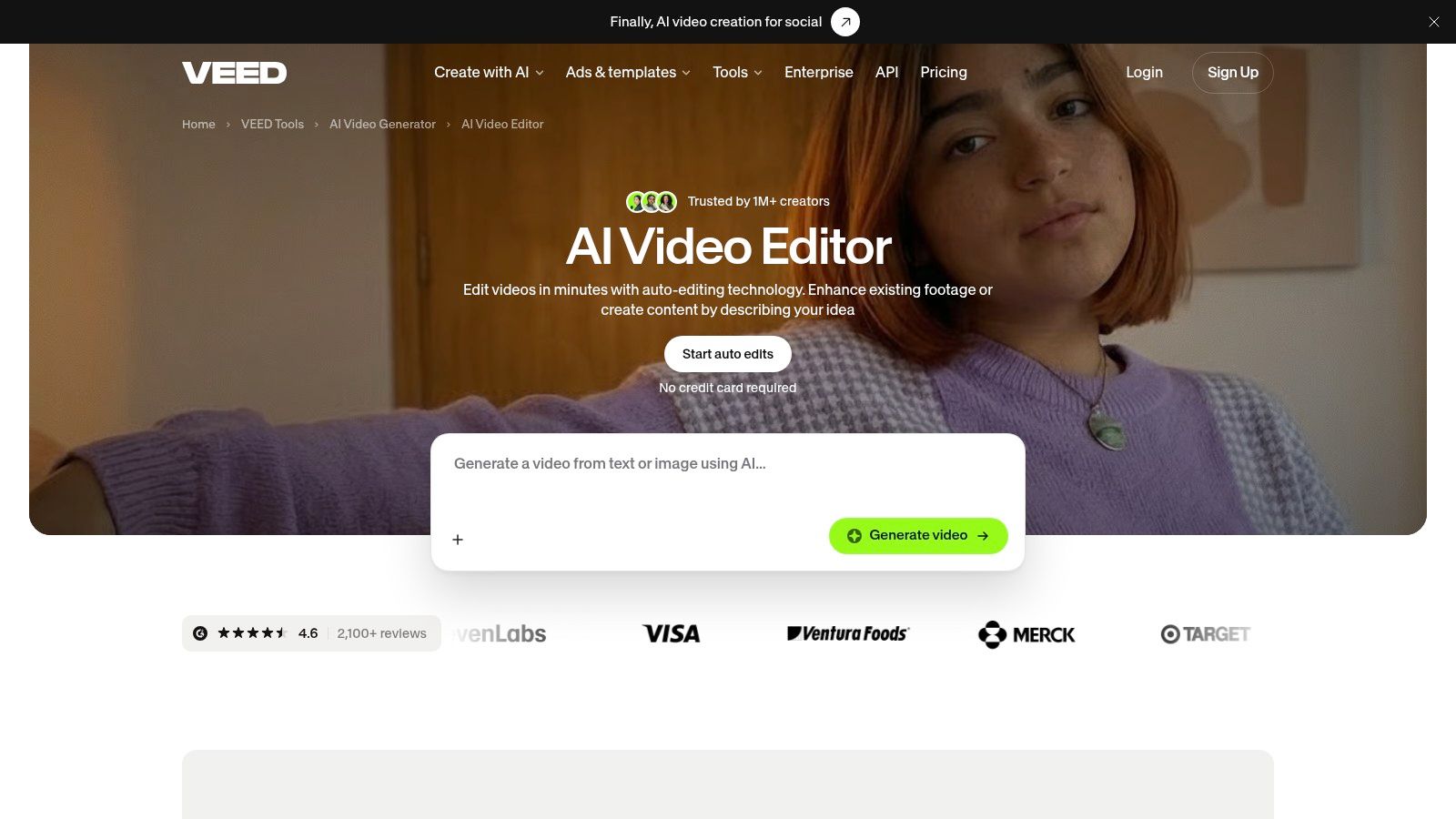
AI tools for audio cleanup and video enhancement add to that caption-led workflow. For someone posting from a laptop with no editor installed, that's a practical combination. You can try the process through the lens of a browser-based AI UGC workflow and see whether editing in a tab fits how you work.
A free plan with a watermark is a demo, not a delivery format. Treat it that way when you're costing a client project.
That's the central limitation here. Free exports carry a VEED watermark, while watermark-free exports and broader AI access are on paid plans. Some AI capabilities and higher export options are also paid, so the free tier doesn't tell you the full ongoing cost of regular production.
Use VEED free to test captions, cleanup, and the browser interface on one real clip. If you'll publish weekly or deliver to brands, budget for a paid tier from the start instead of re-exporting the same work later.
7. Invideo Editor
The distinction to understand with Invideo Editor is between free manual editing and credit-based AI help. Manual editing and export are free according to its product page, but AI agent work and generated media use credits. Those are different products inside one editor, and confusing them leads to a surprise bill later.
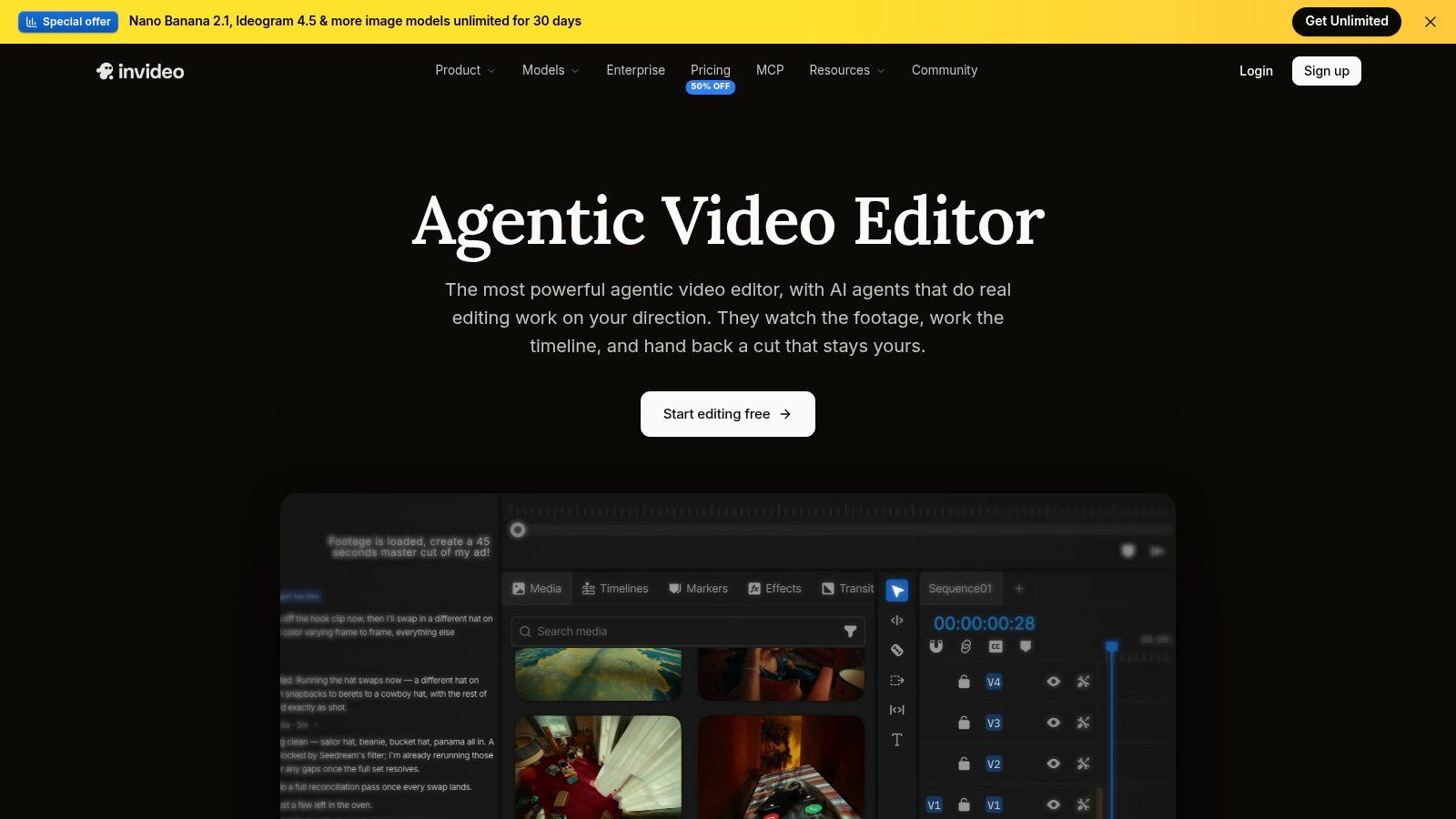
The browser-based multitrack timeline lets you inspect and change edits yourself. AI agents can assist through plain-language instructions with rough cuts, removing pauses, and restructuring footage. If you like the idea of delegating a multi-step task but still want to review it on a timeline, that combination is appealing.
Research on agentic editing points to why review controls matter. A study published on arXiv of 12 video creators found participants valued speed and comprehension, while criticizing processing latency, insufficient preview mechanisms, and limited opportunities for mid-process correction in agentic tools. A visible timeline and reversible edits help you catch a bad cut before it becomes the export.
- Manual timeline: Free editing and export, with direct control.
- AI agents: Plain-language help that consumes credits.
- Cross-device access: Works in a browser across desktop, tablet, and phone.
Frequent AI assistance may require credits, and the fuller editor takes longer to learn than a one-click social tool. I recommend it if you want to learn timeline editing while using AI selectively, not if you expect unlimited agent work for free.
8. DaVinci Resolve
DaVinci Resolve is the outlier on this list, and that's its strength. It's a free desktop suite for Windows, macOS, and Linux with editing, color grading, visual effects, and audio tools in one application. The free version is not a limited-time trial, and it offers far more manual control than browser-first tools.
According to Blackmagic, the free version supports Ultra HD up to 60fps for compatible formats, with multi-user collaboration and HDR grading listed in the free version. If a project needs careful color, mixed audio, or effects work, Resolve gives you room to grow without a subscription. Even tasks like learning how to sync video and audio across separate recordings make more sense in a full editor.
What you trade for that power
You need desktop software, suitable hardware, and time to learn a more advanced interface. Some headline AI features are reserved for the paid Studio edition, so don't assume every AI capability in Blackmagic's marketing is in the free download. It's also less convenient than a browser editor for a quick edit from your phone.
That trade is worth it if editing is a craft you plan to build. If you mostly need captions, pause removal, and a post today, Resolve is more program than the job requires. Powerful doesn't always mean faster.
Free plan limits at a glance
| Item | Free exports | Watermark on free exports | Best for |
|---|---|---|---|
| Microsoft Clipchamp | Up to 1080p | No | Beginners editing social videos and screen recordings |
| CapCut | Basic free exports; limits not specified | Not specified | Quick vertical edits and caption-led clips |
| Descript | Limited to 720p | Yes | Editing interviews and talking-head videos by transcript |
| Canva | Free video exports; limits not specified | Not specified | Social videos with branded graphics and layouts |
| Adobe Express | Free exports; limits not specified | No | Short promotional and social videos with graphics |
| VEED | Free exports with plan limits | Yes | Browser-based editing with captions |
| Invideo Editor | Free manual editing and exports | Not specified | Timeline editing with optional AI assistance |
| DaVinci Resolve | Free desktop exports; supported formats include Ultra HD up to 60fps | Not specified | Detailed editing, color grading, effects, and audio work |
Pick the Free Plan Whose Limits Fit Your Footage
Don't choose from a feature grid alone. Run one real clip through the tool you're considering, using the kind of footage you'll publish every week. A polished sample hides weak caption accuracy, awkward cuts, and export limits that a rough phone recording exposes immediately.
Before you commit, check four things on that exported file. Confirm the export resolution, look for a watermark, note how many credits an AI task consumes, and check whether the output is cleared for the use you have in mind. The commercial question matters because free access can coexist with branding, export restrictions, or no commercial license, as NexodaTech's guide to free AI video generators sets out in its discussion of watermark and licensing conflicts.
Pre-export audit: Inspect the rendered file, verify the aspect ratio, and document the license for every uploaded or generated asset before a client sees it.
Privacy deserves the same check, especially with unreleased products, testimonials, or identifiable people. Adobe and Harris Poll's 2025 Creators' Toolkit Report, based on more than 16,000 creators across eight major markets, found 69% worried their content could be used to train AI systems without permission. Read the retention, deletion, human review, and model-training terms before you upload client footage, not after.
Review every auto-generated caption before publishing, since automated transcripts can contain mistakes in names, numbers, and product terms. Watch the full export with sound on, because a caption error or a cut mid-word is easy to miss in the editing preview. That final check is cheap insurance.
Match the tool to your workload. Clipchamp and Adobe Express give you publishable free exports for simple work, CapCut suits fast vertical templates, and DaVinci Resolve rewards people who want manual depth. Descript and VEED are useful ways to test a workflow, but their watermarked free exports limit real delivery, while Invideo Editor separates free manual editing from credit-based AI help.
If your work is mostly raw talking-to-camera footage, compare the hours of manual cleanup a free editor needs against a paid plan. Mimic, for example, is a paid AI UGC editor with a Creator plan and a Studio plan, and it offers free tools including a hook generator, a safe zone checker, a teleprompter, and a UGC rate calculator. The right choice is the plan whose limits still let you publish the video in front of you.
If most of your footage is raw talking-to-camera clips, Mimic picks a UGC style, cuts pauses, adds word-by-word captions, and places your product shots so the video comes back ready to post. That's a direct route around the manual cleanup many free plans still leave you, and you can try the workflow at Mimic.