10 Best AI Video Editing Software Tools for 2026
Compare the best AI video editing software of 2026 by automation, editing control, workflows and pricing, with notes on limits for talking-head and UGC videos.
You have twelve talking-head clips due Friday. Each one has pauses, a false start, and a product that has to appear mid-sentence. The client wants captions, a hook, and the same look on every file.
Automated editors can chew through most of that in minutes. They do not all leave you the same control. Some lock a style in place. Some hand back a transcript you can rewrite word by word. Some still expect a full timeline before anything looks finished.
This list treats best AI video editing software as a production choice for talking-head and UGC footage, not as a general effects suite. I judge each option on four questions. How much does it automate? How much manual control remains? Which workflow does it fit: phone, browser, desktop, or a team? What does it cost once you are shipping every week?
The category is already large enough that the choice is operational, not experimental. Grand View Research estimates the global AI video-editing segment generated USD 1,497.8 million in 2024 and projects USD 9,562.0 million by 2030, about a 38% compound annual growth rate from 2025 to 2030. North America was the largest region in 2024. Treat those figures as directional, because some forecasts fold in video generation.
What follows is where each tool saves hours, and where it takes the cut away from you.
1. Mimic
Raw talking-to-camera footage is the job this one is built for. You pick a UGC style, drop in the clip plus any demo or product photos, and get back a cut with word-level captions, dead air removed, a hook, zooms, and those product shots placed in the edit. Most videos come out ready to post, and no editing experience or desktop suite is needed to get there. The trade-off sits upstream: the style you choose makes most of the decisions, so your real control is picking the right reference and fixing details after the pass.
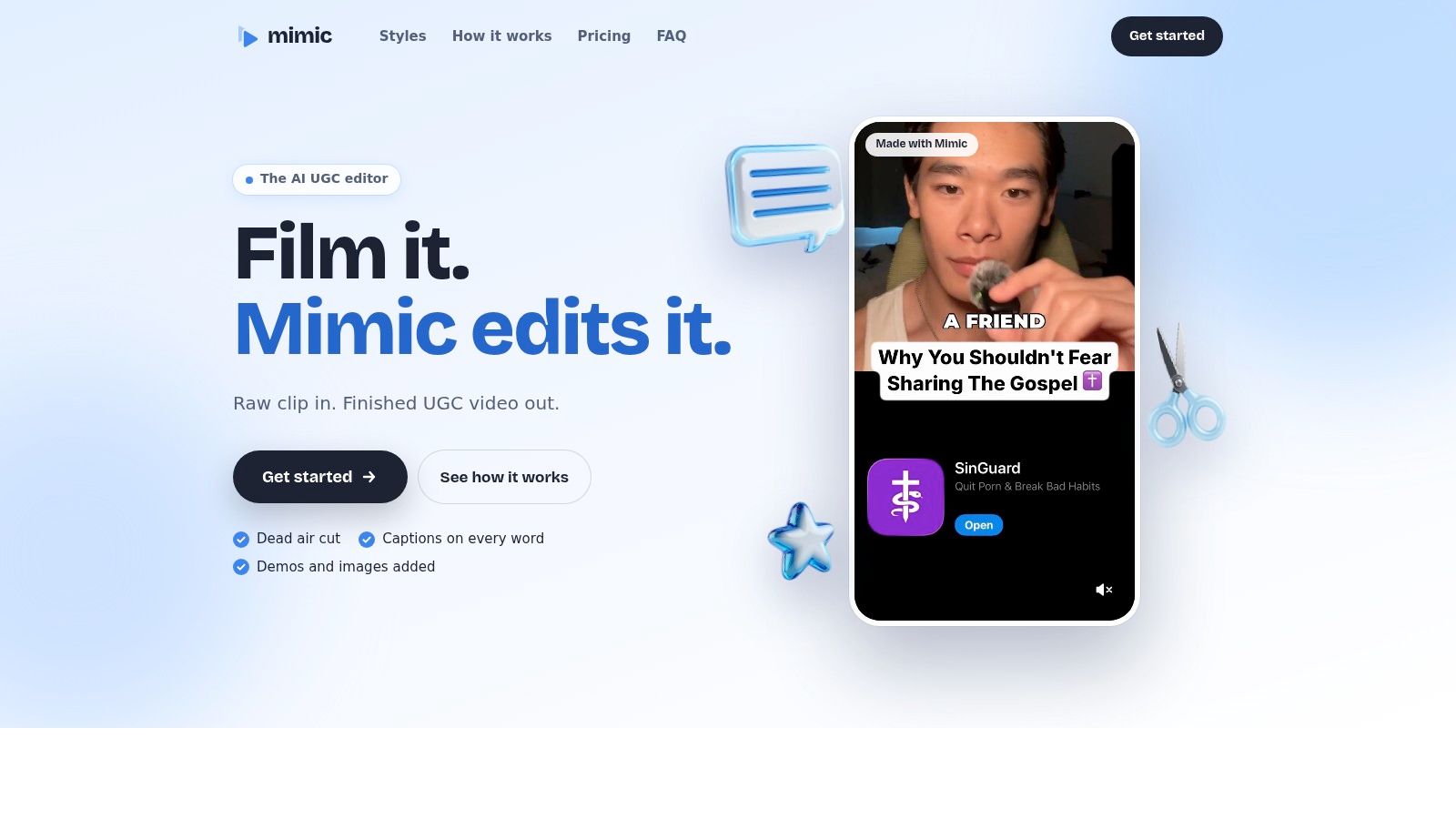
Automation covers transcription, pause and filler cuts, false starts, and style-matched cards, zooms, and sound. Built-in looks include split screen, app demo, highlighted or boxed captions, stacked headings, and headline hooks. Onboarding also offers talking head, with or without a demo, pictures, jump cuts, one take, hook, callouts, list, and green screen. You can import any UGC video you own, or have permission to use, as a style reference. Mimic transfers the caption look, pacing, cuts, and effects. None of the reference footage lands in your file.
What you still fix by hand
Captions, cuts, timing, and sound stay editable after the automated pass. You can also ask in plain language for changes, such as larger captions or dropping the opening line. Mimic can trim the warm-up before the product appears, and it keeps text inside the video's safe zones. On a computer the finished file downloads as an MP4. On iPhone you choose Save Video in the share sheet. If processing looks stuck, keep the tab open until the upload finishes. After that you can close it and the job keeps running.
Phone and desktop browsers are the whole workflow, which suits a solo creator or a team with no edit bay. Teams share styles and product footage so several creators do not drift into different looks on the same account. Annual billing puts Creator at $280 for 100 new videos a month and Studio at $480 for 300. Both plans include every built-in style, reference imports, word-timed captions, automatic dead-air cutting, and one account across phone and browser. The monthly count is shown when you subscribe and again in Settings. A new video counts once against the allowance. Editing, re-exporting, or saving it again does not. Allowances reset on the first of the month and do not roll over. Plans renew until you cancel in Settings. Exports that use built-in styles and sounds are cleared for personal and commercial use. Free tools sit alongside the paid plans: a hook generator, a safe zone checker, a teleprompter, and a UGC rate calculator.
Review before you post: Automated captions can mishear a product name or a claim. Check every line, then export.
Uploads are used only to produce your edits, never to train AI models. You can delete individual videos or the whole account. Some features rely on third-party AI providers, so teams with strict data policies should weigh that before uploading client footage.
Unused allowance does not carry over, so a slow month is capacity you do not get back. I would pick this when the deliverable is recurring UGC at volume. A graded commercial with a custom finish still belongs on a desktop timeline.
2. Captions
Captions is aimed at solo creators who record on a phone and need a shareable social cut the same day. It automates captions, sound, visual tweaks, and short clips pulled from a longer take. You can also ask for changes in chat instead of hunting through menus.
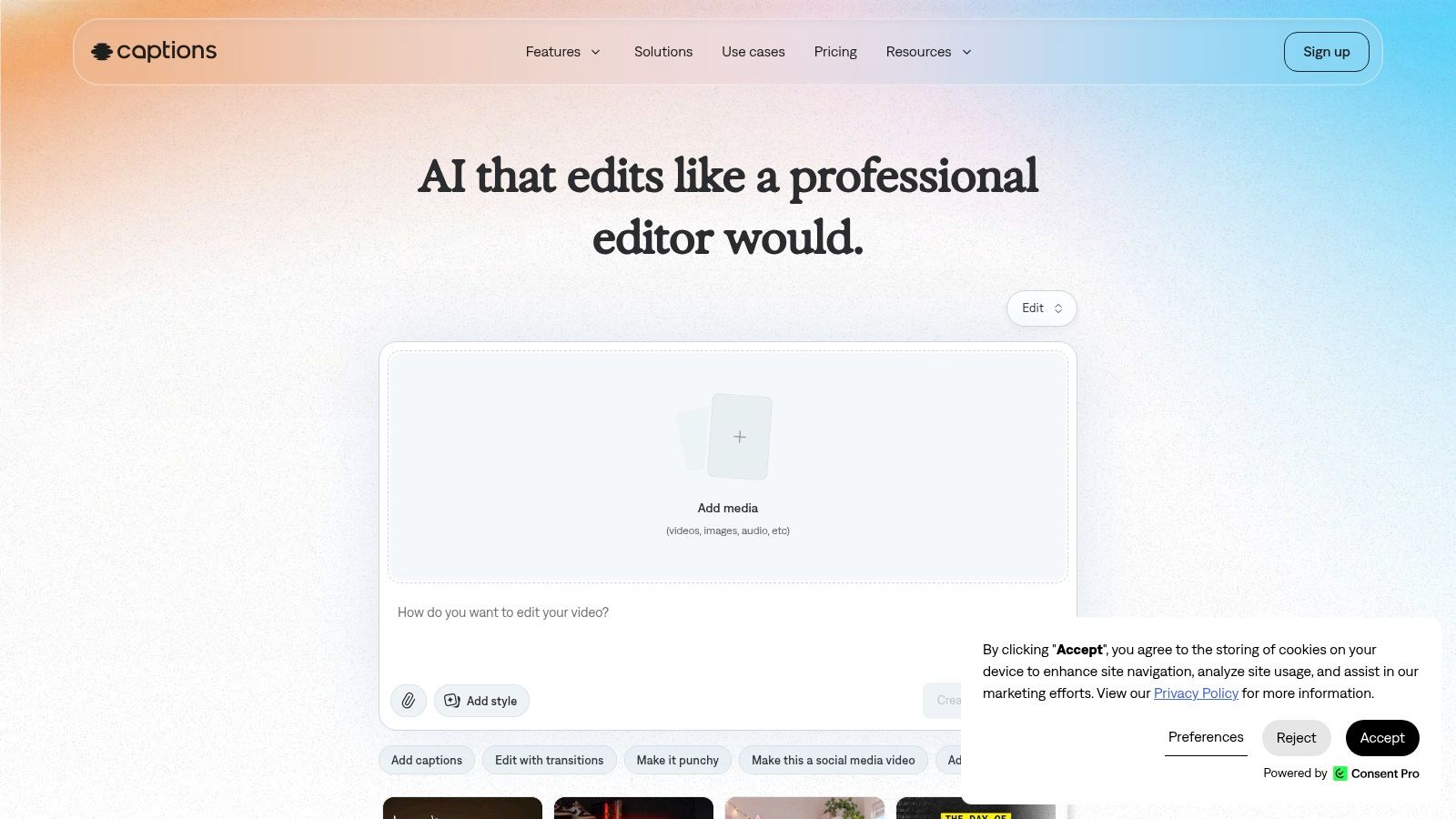
Manual control is there, but it is not a conventional multitrack desk. You can adjust the automated pass. You cannot rebuild a complicated product sequence the way you would on a desktop timeline. Eligible plans add generated media and AI actors. Those are a different job from cleaning a real creator's take, and they burn credits in ways that are hard to forecast if you regenerate often.
Where it fits, and where the bill gets fuzzy:
- Phone-first social cuts: Strong when the output is a vertical post, weak when you live in a desktop timeline.
- Chat revisions: Useful for common fixes, less useful when the product has to hit an exact spoken word.
- Cost: Features and prices change by subscription channel and device. Credit-based generation makes a heavy month less predictable.
I would use Captions for one creator shipping short social videos. I would not hand it a twelve-clip UGC batch that has to match a brand reference frame for frame.
3. Descript
Say the creator rambles for forty seconds before naming the product. In Descript you delete those words in the transcript and the picture follows. That is the whole idea, and it is still the fastest way I know to clean dialogue without scrubbing a timeline.
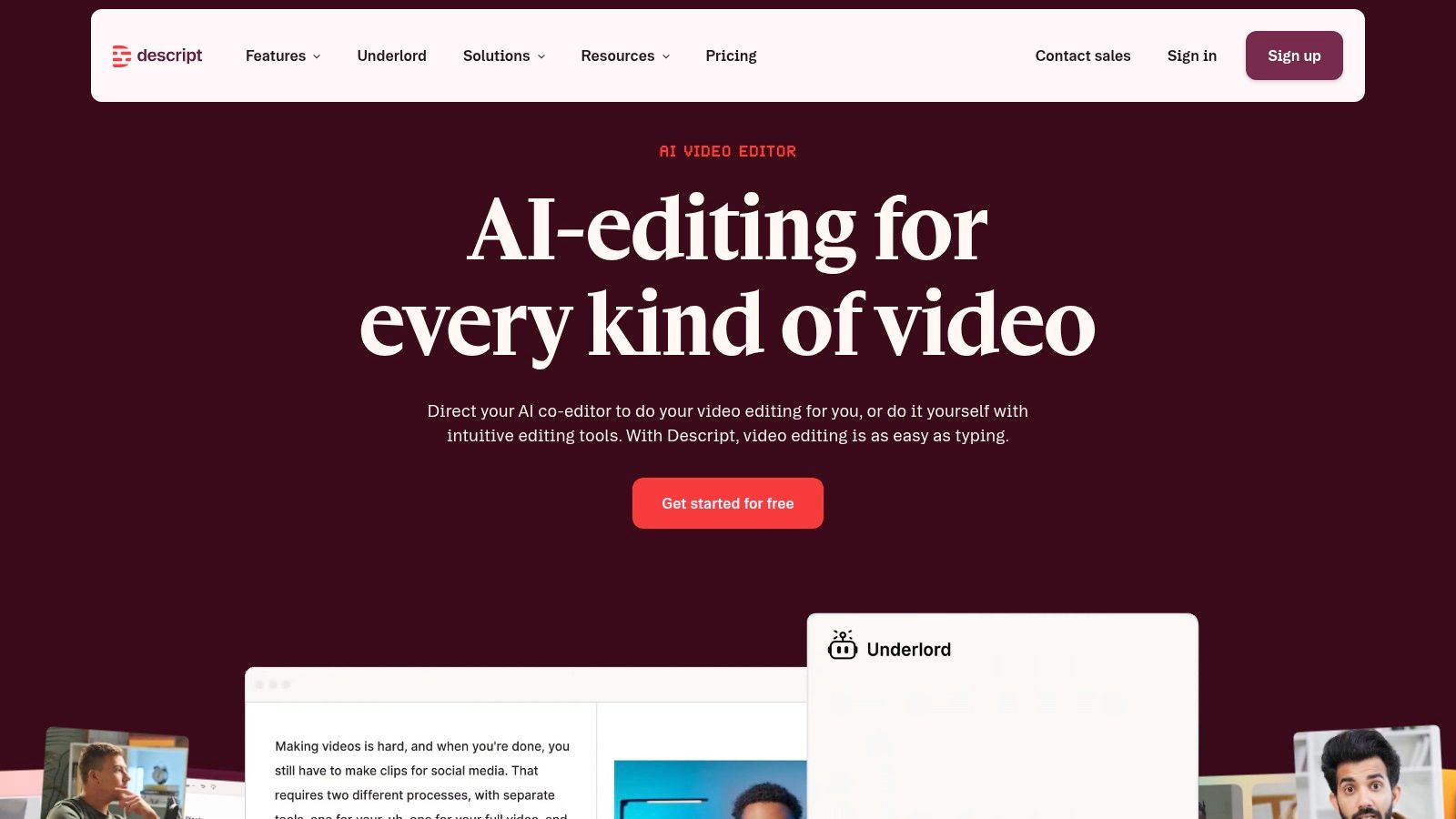
Automation covers filler-word removal, audio cleanup, clip creation, and speech generation. Underlord is the co-editor you can talk to. You still have visual and timeline controls when the transcript edit is not enough. It fails when the picture, not the sentence, is the point. A demo that has to land on a specific frame will fight a text-first cut. If filler removal is the bottleneck, a tighter pass on how to remove filler words from video is worth doing before you trust a one-click strip.
The app is desktop-oriented, not a phone browser workflow. Plans mix media hours and AI credits, and those limits change by tier, so a weekly client load can cost more than the sticker price suggests. Teams can work in it, but it is an editor's tool, not a shared UGC style library.
Delete the words, then watch the picture. A clean transcript can still jump the product demo.
Descript is the right desk for interviews, testimonials, and podcast video. It is the wrong one if you only need a styled vertical and you edit from your phone.
4. OpusClip
A 40-minute webinar is a different problem from twelve short UGC files. OpusClip looks for candidate clips, scores them for virality, adds animated captions in multiple languages, and can strip filler and silence. Paid plans add brand templates, social publishing, and a team workspace.
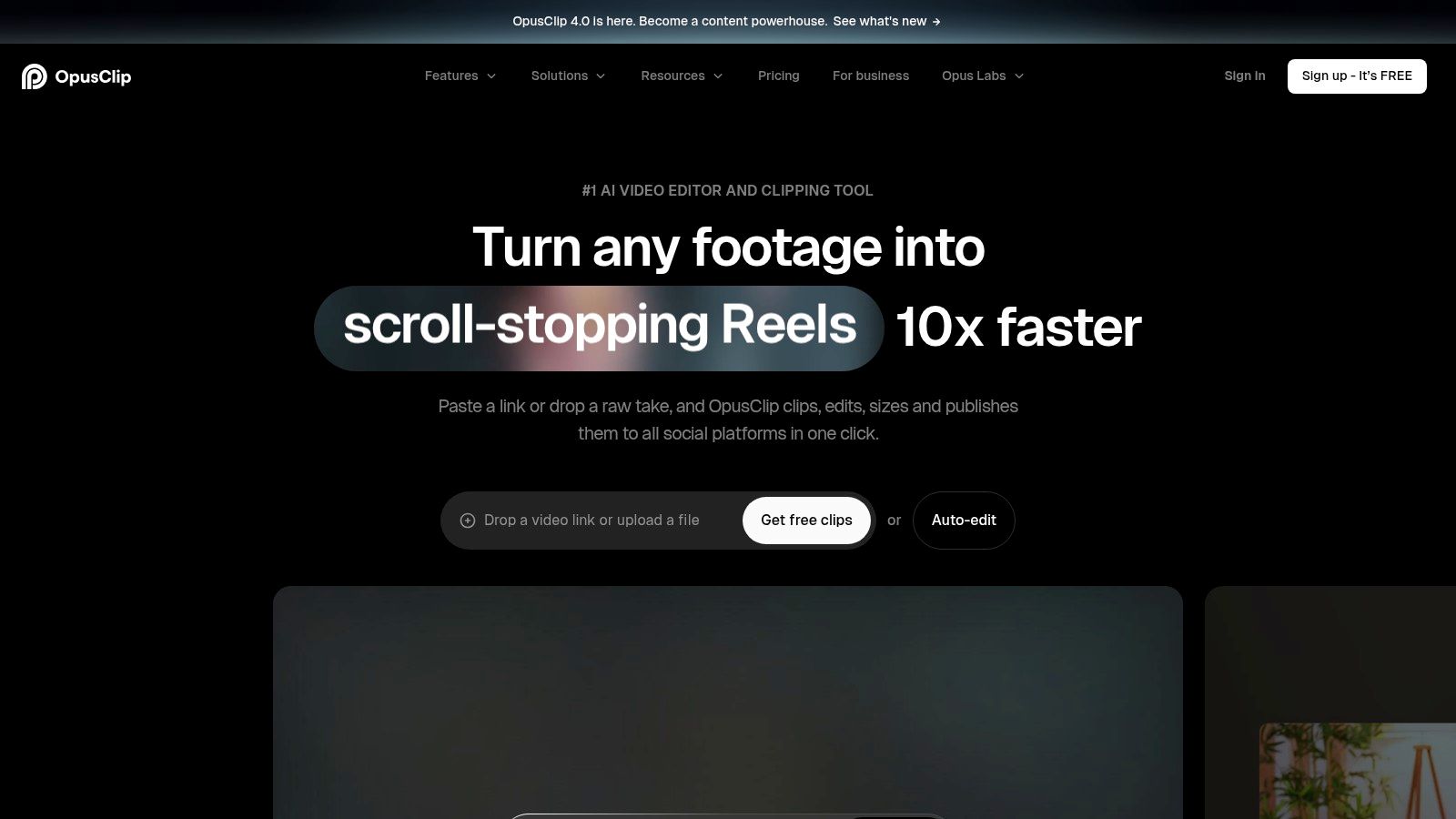
Automation is strong at finding moments and weak at finishing one hero video. The virality score is a sorting hint, not proof a clip will work for your client. Framing and clip choice both need a human pass. A scored excerpt can open mid-thought or crop the product out of the lower third.
You upload a file or paste a link, then work in the browser. That suits an agency turning one recording into a batch of posts. It does not replace a timeline when you need a custom mid-sentence product insert. Credits and feature access depend on the plan, so batching a long source can spend the month faster than a single talking-head edit.
I reach for OpusClip when the source is long and the deliverable is many shorts. I leave it alone when the brief is one controlled UGC ad.
5. VEED
VEED keeps the edit in the browser. You trim, caption, clean audio, resize for social, and edit by text, without installing a desktop app. There is a stock library, and separate AI tools that generate video rather than cut footage you already shot. Don't mix those two jobs up when you are pricing a month of client work.
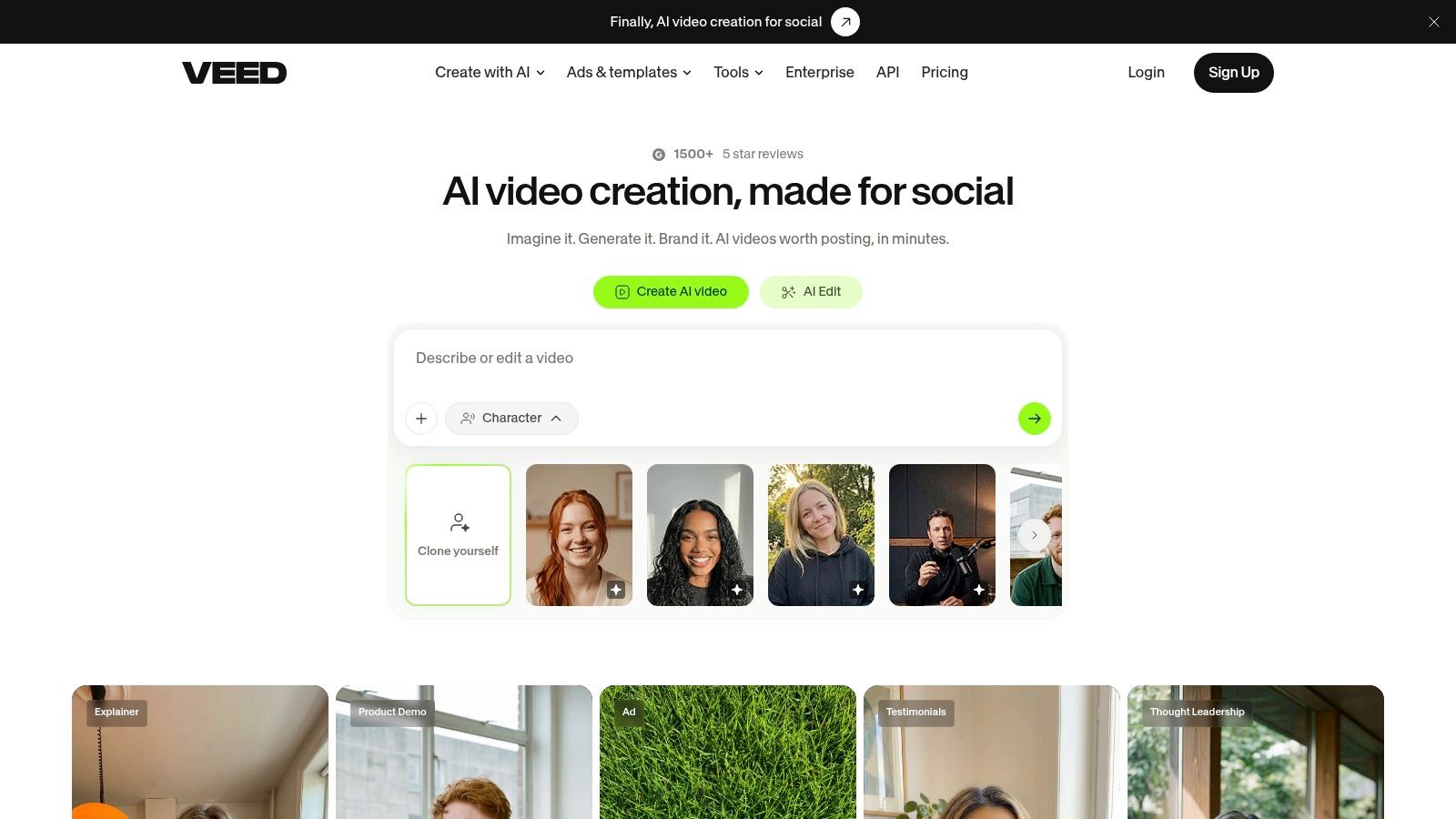
You can correct the draft by hand, which matters. What you don't get is a library of talking-head formats that already know how a UGC ad should pace. Every style choice is closer to a general editor than to a preset built for product creators. Free exports carry a watermark and a lower resolution cap, so the free tier is a trial, not a delivery plan. Paid plans and AI allowances decide whether regular production stays affordable.
It runs across common devices and browsers, which helps a creator who switches between a laptop and a phone. Team use depends on the plan you buy. I use VEED for straightforward caption, cleanup, and resize work. I don't use it when several creators must inherit one UGC look without rebuilding it.
6. CapCut
CapCut is the tool people open when they want templates, auto captions, and a real timeline on the same screen. Transcript tools flag filler words and speech gaps. Auto-reframe handles aspect ratios. Effects and templates push a clip toward a social look fast.
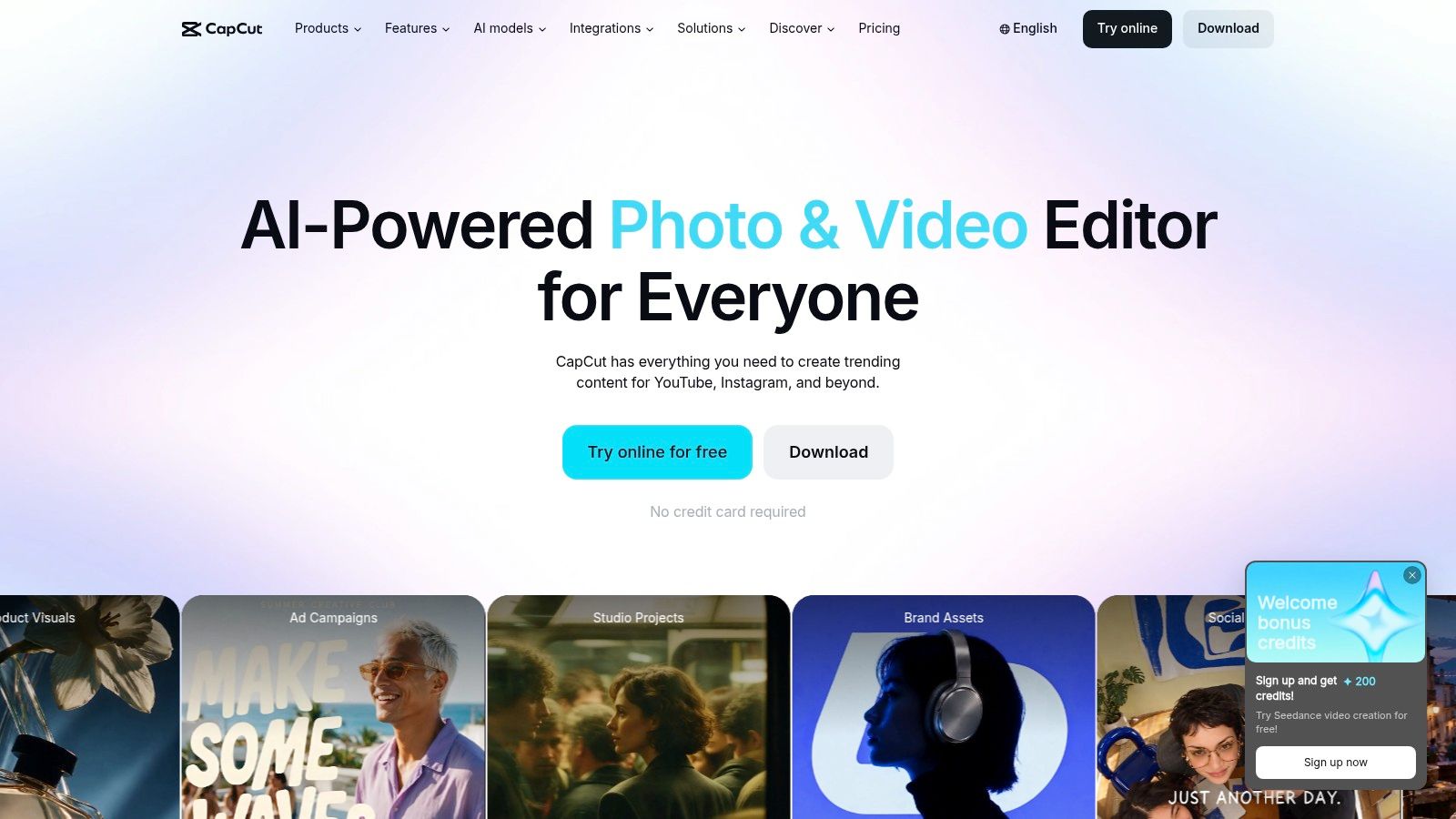
The trade-off is the size of the toolbox. Automation removes pauses and writes captions, then leaves you to notice when a cut chopped a product claim in half. Manual tracks let you fix that. They also mean you can spend the hour you hoped to save just finding the right panel. Features differ across web, desktop, and mobile, so a phone edit and a desktop edit are not the same product. Advanced AI uses credits or a paid plan.
A split layout is a common UGC ask, and the timeline can build one, but you are assembling it yourself. If that layout is the brief, read a practical pass on how to make a split screen video before you assume a template matches the creator's framing.
Practical fit:
- Free tier: Enough to try captions and basic cuts. Not a promise that every AI export is included.
- Control: High, once you know where the tools live.
- Team consistency: Templates help. They don't lock a shared product library the way a style handoff does.
CapCut is a fair default for creators who will still touch the timeline. It is a poor fit if you want one click and no hunting.
7. Submagic
Submagic stays inside short-form cleanup. Captions, hook titles, silence removal, and bad-take cuts are the center of the product. Paid plans add caption translation, watermark-free export, templates, brand assets, and publishing tools. Stock media and publishing depend on the plan.
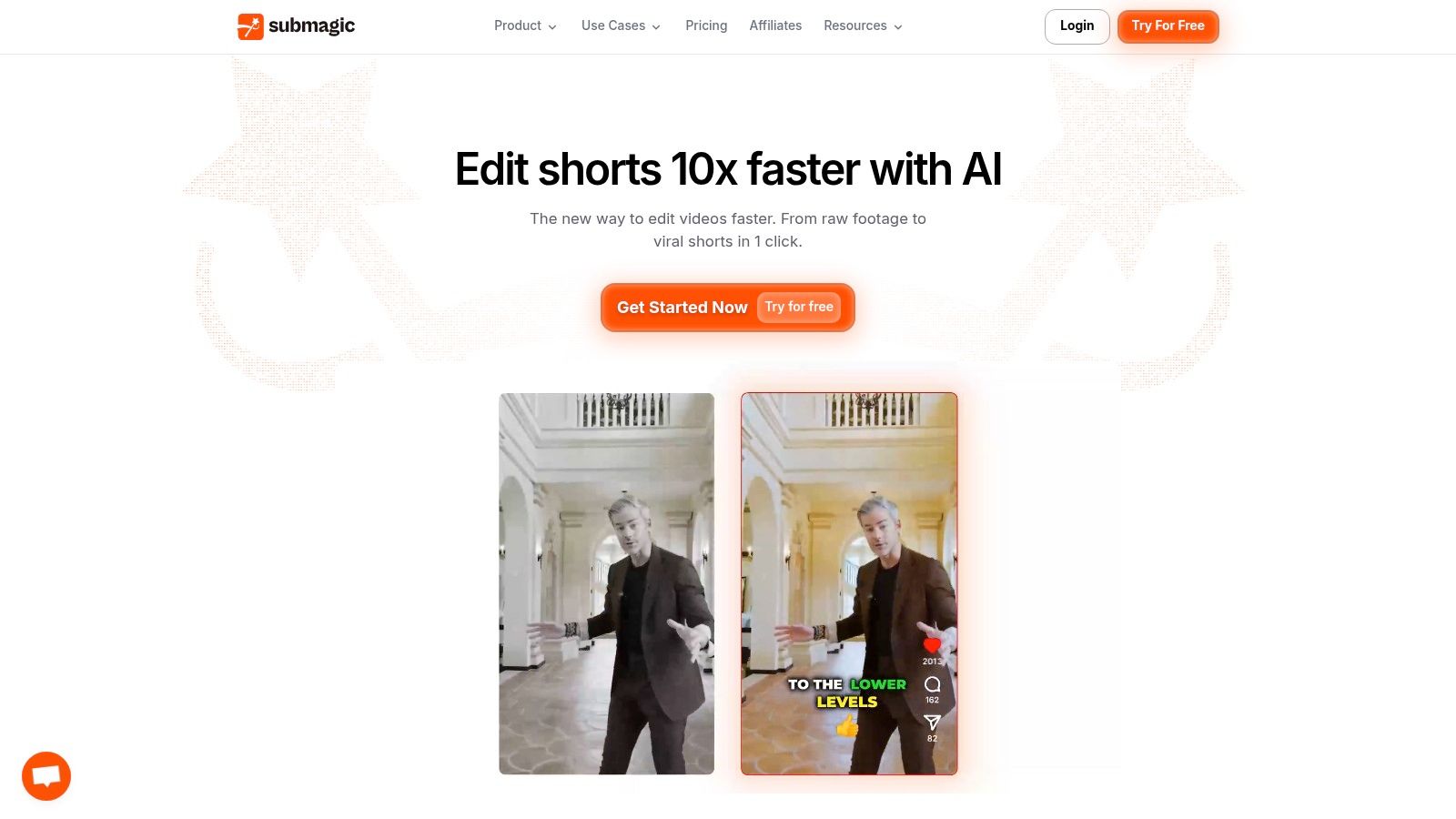
You give up multitrack depth. A video that needs three picture layers, a precise demo, and a graded audio mix will feel cramped. Credits and maximum video length are the cost trap. A batch of longer talking heads can hit the cap before the creative work is done. Templates help a repeatable look, but they won't restyle an entire agency roster from one reference file.
It suits a phone or browser creator posting to TikTok and similar feeds. For the caption and hook habits those feeds punish, an AI video editor for TikTok checklist is a better brief than a feature grid. I use Submagic to get a short, captioned cut out quickly. I switch tools when the edit stops being a social cleanup and starts being a full spot.
8. Adobe Premiere
Premiere is the desk you open when the AI pass is only the start. Text-based editing and dialogue enhancement sit next to effects, titles, color, and audio. Frame.io covers review. The rest of the Adobe stack is there if the job grows past the talking head.
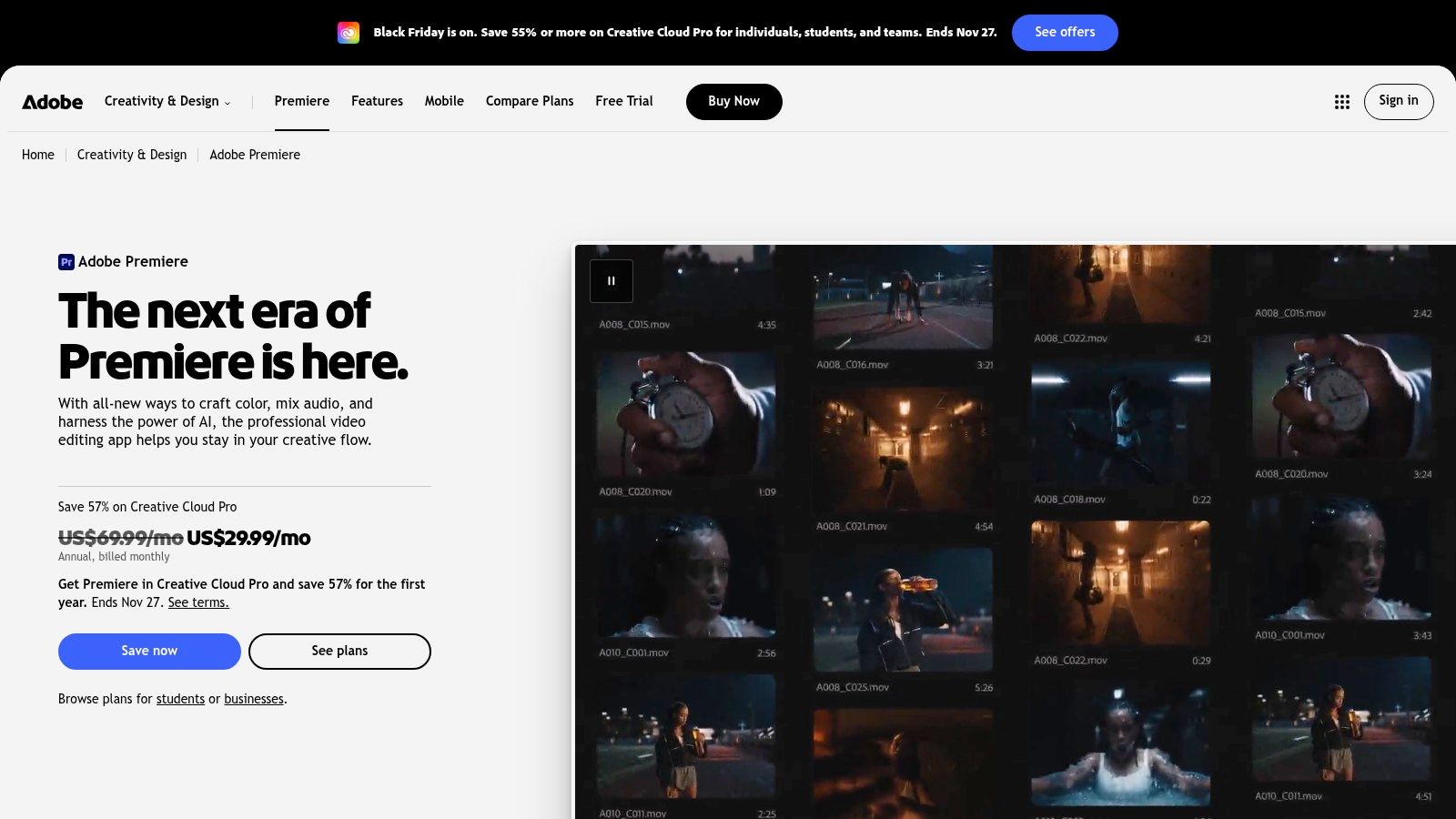
Nothing here applies a UGC style for you and walks away. You still build the hook, the zoom, and the product card. That is the point, and it is also why a simple caption-and-trim job feels expensive in time. The learning curve is real. A creator who only works from a phone will bounce off it.
It remains the reference professional app. An Accio industry-trend compilation put Adobe Premiere Pro at about 35% of the overall video-editing-software market, against 25% for Final Cut Pro X and 15% for DaVinci Resolve. The same compilation said 41% of professionals used AI in video production in 2024, up from 18% in 2023. Those shares describe the wider editing market, not a caption tool's install base.
Pricing is subscription-based, and it is more than you need if every deliverable is a 20-second UGC ad. I keep Adobe Premiere for agency jobs that mix UGC with a real finish. I don't assign it to a creator who has never cut a timeline.
9. Wondershare Filmora
Filmora sits between a one-click social app and a full professional suite. The timeline lists a large set of editing tools, AI features sit on top, and you can still drag a cut after the assistant has had a turn. Eligible plans add stock assets and cloud storage.
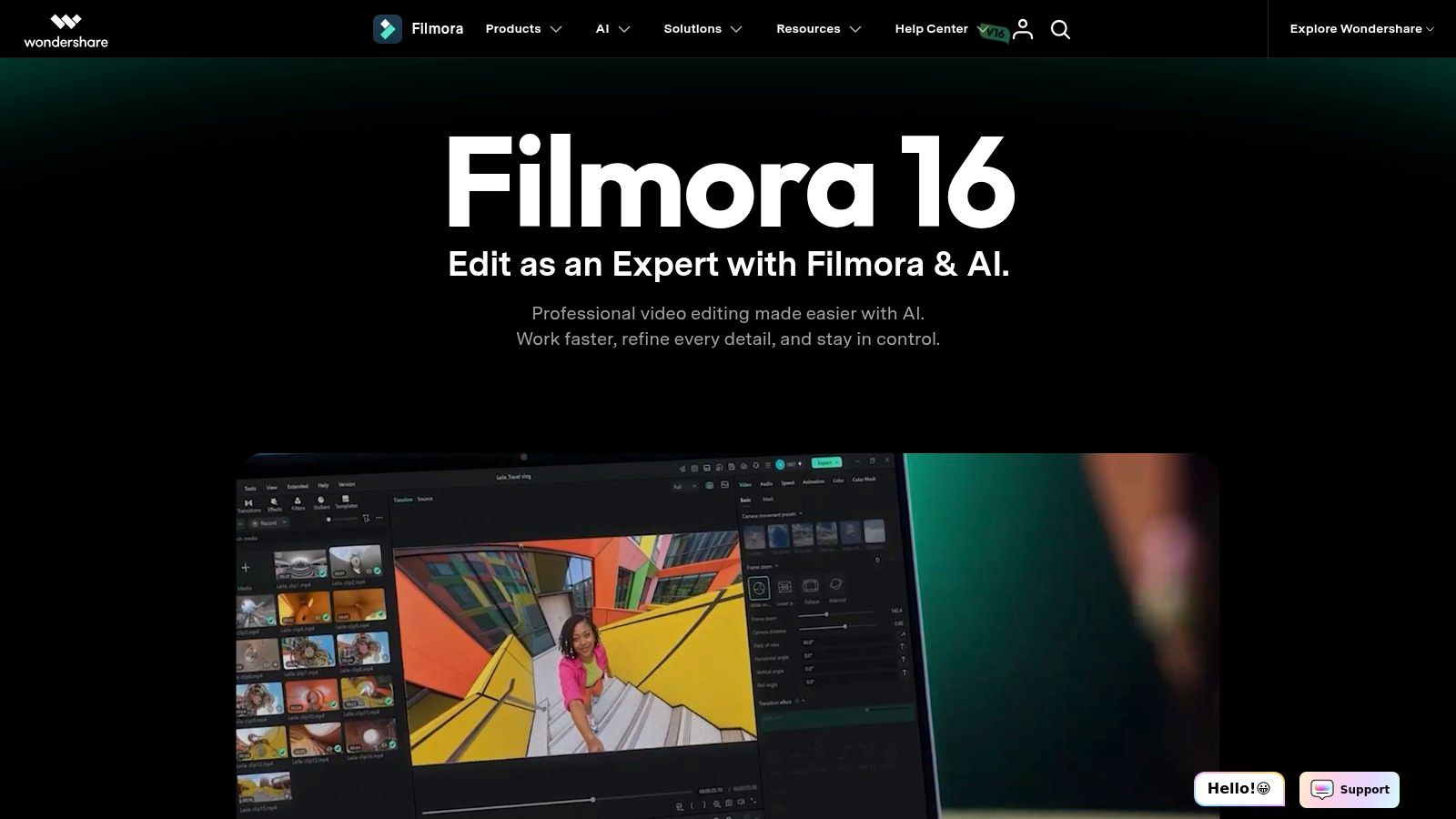
Automation won't carry a whole UGC system. There is no shared library of talking-head formats that several phone creators inherit. You fix pacing, captions, and product timing yourself after the AI pass. That is useful. It is also slower than a style that already knows the format.
The cost model is the interesting part. You can subscribe yearly or buy a perpetual license. Paid plans include watermark-free export and 4K. AI tools on the Advanced plan draw monthly credits, so they are not unlimited. A perpetual license may stop at the version you bought, which means a later AI feature can force another purchase. The editor is a desktop app, so a phone-only creator is fighting the workflow.
I suggest Wondershare Filmora when you want to own a license and still correct the cut by hand. I skip it for a team that films only on phones and needs one shared look by Friday.
10. Canva
Canva is what you open when the video is one asset inside a larger ad set. Magic Video trims, styles, and sequences clips or photos you upload. AI highlights can pull short moments. You then keep editing in the same place you build the static ads.
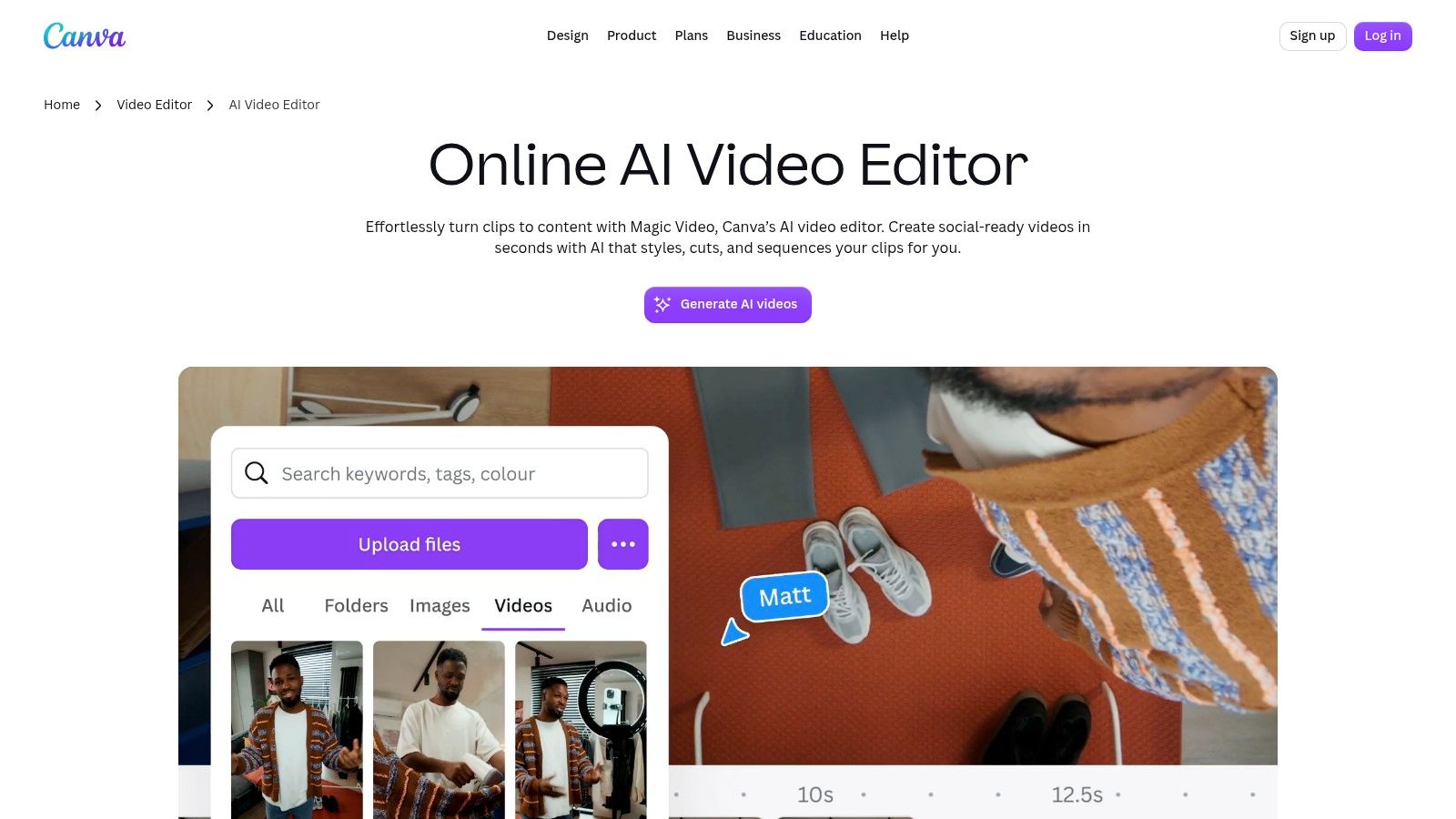
Browser, desktop, and mobile apps all work, and Brand Kit keeps colors and type aligned with the rest of the campaign. Magic Video is included across plans, with usage limits that change by plan and tool. People who have never cut video can get a social-style sequence out. That sequence still needs a manual pass when the product has to appear on a specific spoken line, or when captions collide with a face.
Control stops well short of a nonlinear editor. You won't do a detailed audio edit or a frame-accurate multicam fix here. Generation limits also mean a week of ad variations can stall even when the design tools feel unlimited.
Canva fits marketers who already live in the design file. It does not fit a specialist who needs the cut, the caption timing, and the product insert under tight control.
How the Best AI Video Editing Software Compares on Control, Automation and Access
Judge each row by the same four questions: how much it automates, how much you can still change by hand, where it runs, and what it costs in practice. For talking-head footage, the middle two decide most outcomes. An automated cut you cannot reopen is a reshoot waiting to happen.
| Item | Best for | Editing control | Automation focus | Access |
|---|---|---|---|---|
| Mimic | Polished UGC videos | Fine-tune captions, cuts, timing, and sounds | Transcription, cleanup, captions, and style-based edits | Phone and browser, one account |
| Captions | Short-form social videos | Automated and manual edits; chat-based revisions | Captions, clip creation, and AI editing | Phone and desktop apps |
| Descript | Podcasts, interviews, and talking-head videos | Edit video by changing the transcript | Filler-word removal, audio cleanup, and clip creation | Desktop |
| OpusClip | Turning long recordings into batches of clips | Review and adjust automated clips | Clip selection, captions, and silence removal | Browser |
| VEED | Browser-based social video editing | Browser editing with text-based options | Captions, audio cleanup, and resizing | Browser |
| CapCut | Social edits with timeline control | Manual multitrack editing and adjustments | Captions, filler-word removal, and reframing | Phone, desktop, and browser |
| Submagic | Fast short-form video cleanup | Templates and brand assets; limited complex editing | Captions, hooks, silence removal, and translation | Browser |
| Adobe Premiere | Professional editing and finishing | Detailed timeline, effects, color, and audio control | Text-based editing and speech enhancement | Desktop |
| Wondershare Filmora | Accessible timeline editing | Manual timeline fixes and adjustments | AI editing tools with plan-dependent credits | Desktop |
| Canva | Social videos within a marketing design workflow | Continue editing after automated styling | Automatically styles, cuts, and sequences media | Browser, desktop, and mobile apps |
Two rows deserve a closer read on cost. Mimic has no free editing plan, but it ships free tools (a hook generator, a safe zone checker, a teleprompter, and a UGC rate calculator), and its displayed annual plans run $280 for Creator at 100 videos a month and $480 for Studio at 300. Each new video counts once against that allowance; editing, re-exporting, or saving it again does not. Across the rest of the table the pattern holds: the heavier the automation column, the thinner the control column. Whatever you pick, review the export before publishing. Automated captions still miss product names.
Matching the Editor to Your Footage, Team and Budget
Start with the workflow you have. One creator with a phone and a stack of talking-head clips needs a browser that finishes a style, not a color suite. A team producing UGC across several people needs a shared look and shared product media. A long webinar that must become a dozen posts needs a clip finder, then a human who checks that each excerpt is a complete thought.
Adoption is wide enough that the argument is no longer whether to try a tool. Adobe's global survey of more than 16,000 creators found that in 2025, 86% of creators actively used creative generative AI, and 55% used it for editing, upscaling, or enhancement. That number does not say the automated cut is good. It says your clients have already seen machine-made first drafts and will notice a sloppy one.
Test one real clip
Run the same messy take through each finalist. Include a false start, an accent or a product name the tool might miss, and a moment where the product has to appear mid-sentence. Then score what you can still change.
What to write down:
- Time to a postable file: Minutes for the draft, then minutes you spend fixing it.
- Caption corrections: Count wrong words, bad line breaks, and names you had to retype.
- Control you lost: Note any cut, zoom, or crop you could not undo without starting over.
- Workflow match: Phone, browser, desktop, or a shared team space. If the editor only lives on a desktop and your creators film on phones, stop there.
- Real monthly cost: Credits, exports, seats, and whether a redo spends the allowance again.
Growth forecasts won't pick the winner for you. Sci-Tech Today cites an estimate of about USD 1.1 billion for the global AI video-editing market in 2024, rising to USD 4.4 billion by 2033 at a 17.2% compound annual growth rate, and says 41% of creators using AI video tools do so weekly. Weekly use means the subscription has to survive your actual volume. Compare the allowance and the renewal terms with the number of new videos you publish, not with the plan's largest number.
A separate check belongs on the footage itself. Client homes, unreleased products, and licensed music should not be a training set by default. Read the retention and deletion terms before you upload a brief you cannot put on the open internet.
Check every caption and every cut before you publish. Automated output still mishears claims and drops pauses you meant to keep. The best AI video editing software, for this kind of work, is the one that removes the repetitive passes and still lets you put the product on the right word.
We turn raw talking-to-camera clips into captioned, cut UGC with a hook, zooms, and your product shots, in a style you pick or import. You can still change captions, cuts, timing, and sound, including in plain language, before anything goes to a client. If that is the batch you are finishing this week, try Mimic.