AI Video Effects Guide: How They Work and Use Them Well
Learn common AI video effects, how they are generated, and how to use them responsibly in edited content, with a practical checklist for creators.
41% of brands used AI to create video in 2025, up from 18% in 2024, according to Wistia's 2025 State of Video report, which analyzed more than 14 million videos and surveyed 1,300 professionals. In one year, AI video effects went from something a minority of teams experimented with to a line item on the production calendar.
The spending follows the habit. Fortune Business Insights valued the global AI video generator market at $716.8 million in 2025 and projects $3.35 billion by 2034, an 18.8% compound annual growth rate. Analysts define that market differently, and this forecast leans toward generation tools rather than every editing effect, but the direction isn't in dispute.
What the adoption numbers don't tell you is which effects are safe to use. A burned-in caption and an invented street scene both get filed under AI video effects, and they carry completely different obligations. Every effect changes pixels. Some also change what a viewer believes happened on camera, and that's the line worth learning to draw.
Common AI Video Effects at a Glance
An AI video effect is any edit that software performs on your footage automatically or generatively rather than you placing it by hand. Word-timed captions, a replaced background, a logo painted out of a shot, a crowd invented for a street that was empty. The category is broad enough that the label hides more than it explains.
Adoption has moved well past post houses. A study of MIT participants found 87.5% had used AI-generated video in 2023, rising to 100% in 2025, according to Luma Labs' AI filmmaking statistics roundup. The same roundup describes the shift from AI as an isolated trick, such as face replacement, to AI as a production layer that reads footage, identifies speech and objects, and applies several edits at once.
Viewers aren't the obstacle either. TechSmith's 2024 viewer study, a survey of 1,000 people across the United States, Australia, Canada, France, Germany and the United Kingdom, found 75% were very or somewhat receptive to watching videos created with AI assistance. People will watch. The question is what you're willing to let them assume.
| Effect | What it changes | How it is generated | Typical use | Main risk |
|---|---|---|---|---|
| Auto captions | Adds timed text to speech | Speech recognition aligned to words | Talking-to-camera and short-form video | Misheard names, numbers or dialect |
| Silence and filler removal | Cuts pauses and false starts | Transcript and audio-energy detection | Tutorials, testimonials, UGC | Cuts that break meaning or context |
| Auto reframing | Crops to vertical or square | Subject tracking and recomposition | Repurposing landscape footage for social | Speaker partly cropped out |
| Background replacement | Swaps the room or backdrop | Person and edge segmentation | Product explainers, virtual sets | Edge halos, false location claims |
| Object removal | Erases items such as logos or people | Inpainting over tracked masks | Cleaning up clutter or wires | Hidden evidence changes the record |
| Object tracking overlays | Attaches graphics to a moving object | Detection, segmentation and tracking | Product callouts, demo arrows | Overlay drifts or disappears at cuts |
| Generative scene extension | Invents new footage beyond the frame | Diffusion or video generation models | B-roll when shots are missing | Viewer takes generated scenes as real |
| Style filters | Changes colour, grain or look | Learned style transfer | Consistent brand look across creators | Skin tone and colour shifts |
| Lip-sync dubbing | Re-times mouth movement to new audio | Face landmark and audio-driven generation | Localised ads and translations | Viewer assumes the speaker said it |
| Synthetic presenter | Shows a generated person speaking | Avatar generation from text or voice | Explainers without filming | Undisclosed synthetic person in a testimonial format |
Reading the Risk Column
Two columns matter more than the rest: what the effect changes, and what it leaves the viewer believing. Auto captions, silence removal, reframing and style filters change presentation. Run them on footage you shot yourself and the record of what happened on set stays intact. You can apply those freely, provided you check the output.
Object removal, generative scene extension, lip-sync dubbing and synthetic presenters change evidence. A van disappears from a job site. A street that was never filmed appears in a travel post. A speaker's mouth forms words in a language they don't speak. Those effects need a decision, not just a render.
Background replacement, object tracking and overlays sit in between. They change the frame without changing the claim, unless the claim depends on the frame. A swapped background in a product explainer is harmless. The same swap behind a customer testimonial implies a location that customer may never have been in.
Keep the sorting habit. When a new effect shows up, ask one question before anything else: does this change what the viewer sees, or what the viewer believes happened?
How AI Video Effects Are Generated
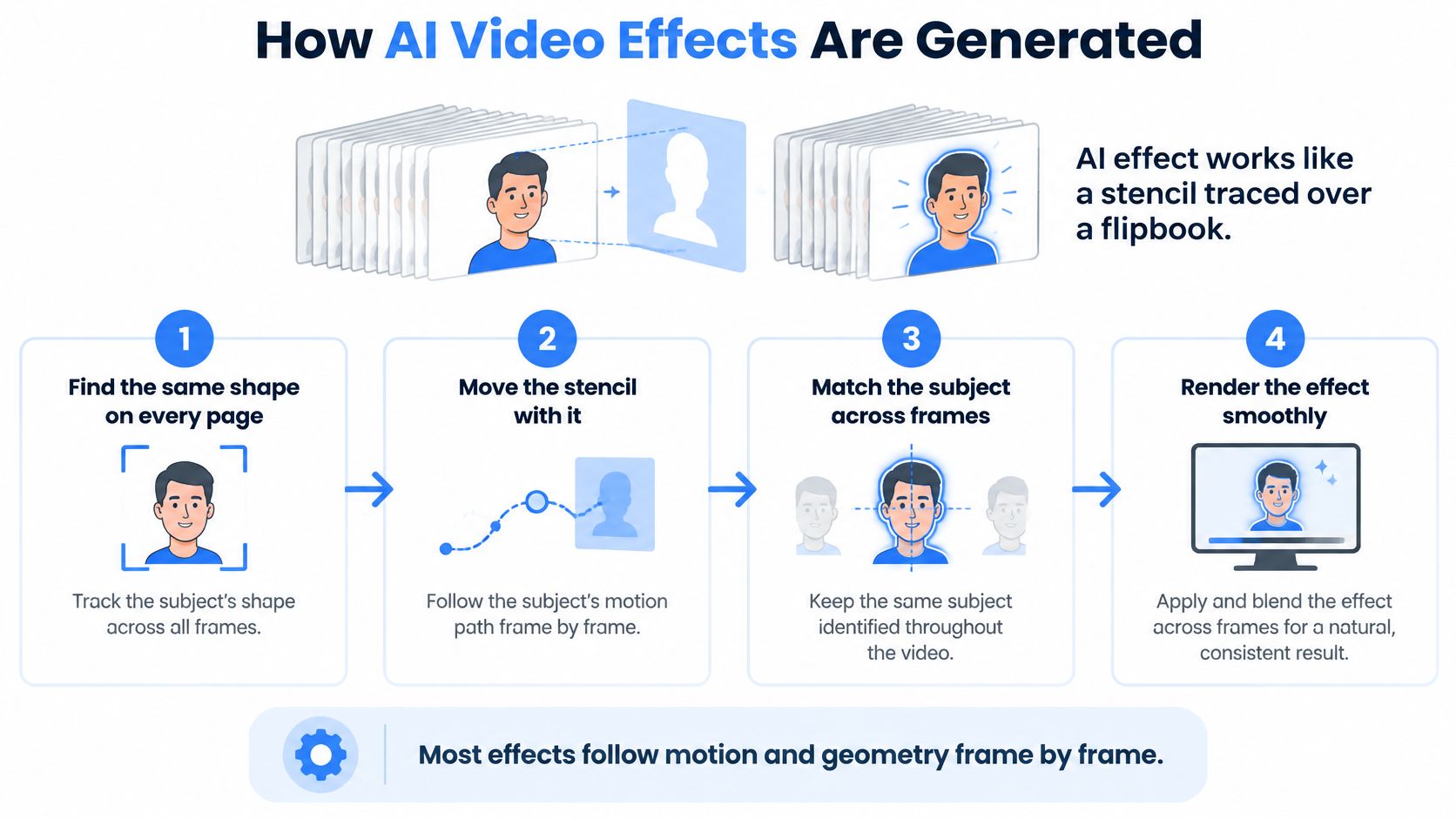
Lay a stencil over a flipbook. If the drawing beneath stays put, the job is easy: you colour the same spot on every page. If the drawing moves, you have to locate the same shape on each page and slide the stencil with it, or the colour lands on the background. An AI effect is that stencil. Finding the shape, frame after frame, is the hard part.
The infographic below reduces the idea to five working moves.
Underneath, most effects depend on video instance segmentation: detecting an object, cutting a pixel-level mask around it, and tracking that mask across frames. The YouTube-VIS benchmark was built to test exactly this, with 2,883 high-resolution YouTube videos, 40 object categories and 131,000 high-quality instance masks. Its MaskTrack R-CNN baseline adds a tracking branch to Mask R-CNN so detection, segmentation and tracking run as one joint task instead of three disconnected passes.
The Five Stages of a Tracked Effect
Walk the pipeline once and the failure modes become predictable.
- Detect the target. The model decides what the effect belongs to. Get this wrong and the highlight lands on the hand holding the product, or on the wrong bottle when two are on the counter.
- Build the mask. The boundary gets drawn pixel by pixel. A loose boundary produces a halo, a clipped finger, or a shoulder that flickers against the new background.
- Track its identity across frames. The mask follows the object through motion. Lose identity and the overlay drifts, swaps between similar objects, or jumps when someone walks through the frame.
- Propagate the edit. The change is carried forward through the tracked region rather than redrawn every frame. If the region is too generous, the edit bleeds into the speaker's face, shirt or wall.
- Blend the result back. The rendered patch is composited into untouched footage. Mismatched grain, motion blur or edge softness leaves a visible seam.
Each of the five stages commits to an interpretation of the scene. The model decided what the object was, where its edges ran and which pixels deserved the change, and the finished video presents all of those decisions as yours. A mask that holds on a still frame can fall apart the moment the subject turns or a hand crosses the product. The benchmark's breadth is the caution here: a model tuned on short, clean clips degrades under varied lighting, camera motion and partial occlusion, and the viewer who notices the seam has no way to know which stage produced it. They just know the published video claims something the footage does not support.
Want to see which of those stages a consumer tool exposes? Run your own footage through a free AI video editing test and watch a moving hand or a reflective product in the first ten seconds.
An effect is only as stable as the mask under it. When the mask slips, everything downstream inherits the slip.
Where AI Effects Go Wrong and How to Spot It
The most common mental model is wrong. People picture an effect as a filter applied to each frame separately, like a photo preset run thirty times a second. What happens is an edit propagated through time: the software decides once what should change, then carries that decision forward.
Adobe Research's Generative Video Propagation framework makes the mechanism explicit. A mask-prediction decoder and a region-aware loss let the model preserve unedited content while moving the edited region through later frames, which is what allows object shape changes, object insertion, shadow and reflection removal, and joint tracking of an object together with the effect applied to it.
That design tells you what to inspect. There are two outputs, not one: the effect, and everything the effect was supposed to leave alone. Both can fail, and the second failure is the one viewers notice without being able to name.
| Symptom | Likely cause | Fix |
|---|---|---|
| Overlay drifts off the product | Tracking lost during fast motion | Re-anchor the mask on a keyframe and shorten the tracked span |
| Shimmer or halo at the speaker's edge | Mask boundary is inaccurate | Refine the mask edge, feather or slightly dilate it, then re-check at high zoom |
| Effect disappears at a cut | Identity not carried across the shot change | Re-insert the effect on each new shot |
| Face or background subtly changes | Edit region bleeds into unedited pixels | Restrict the effect mask and compare untouched areas frame by frame |
| Shadow or reflection left after removal | Removal mask too tight | Widen the mask to cover the shadow and reflection |
What to Measure Beyond a Single Frame
A still frame proves almost nothing. Check temporal consistency, preservation of untouched pixels, mask IoU, boundary accuracy, temporal warping error and human-rated stability, then pick the metrics that match the effect in front of you. A tracked product callout lives or dies by its mask boundary. A generated scene extension lives or dies by whether the new frames match the old ones in grain, motion and light.
Judge tools the same way. Adobe's publication reports leading performance across multiple video tasks but publishes no single aggregate accuracy score, so a vendor claim of best-in-class accuracy means little until you know which task and which metric it refers to. Ask for the measurement, not the adjective.
Pause and compare: stop on the frame where the effect enters and the frame where it leaves, then look at both at 200%. Failures cluster at the boundary and at the handover, not in the middle of the effect.
The inspection routine at the end of this guide turns each row of that table into a specific check you can run in about four minutes.
Captions Need Human Checks, Not Just Style
A caption preset can look excellent in a preview and still be wrong five ways at once, and none of those ways show up in the style picker. Recognition accuracy, timing, cultural context and readability all sit underneath the animation.
Creators already know this. A review of social-media caption research reports that creators preferred self-captioning, followed by automatic captions with manual edits, and ranked unedited automatic captions or third-party handling lower. The same review flags an open question about how AI-mediated captioning distributes the work and whose interpretations get privileged, which matters more than whether the text bounces.
The difference between a correct caption and a merely stylish one is easiest to see side by side.
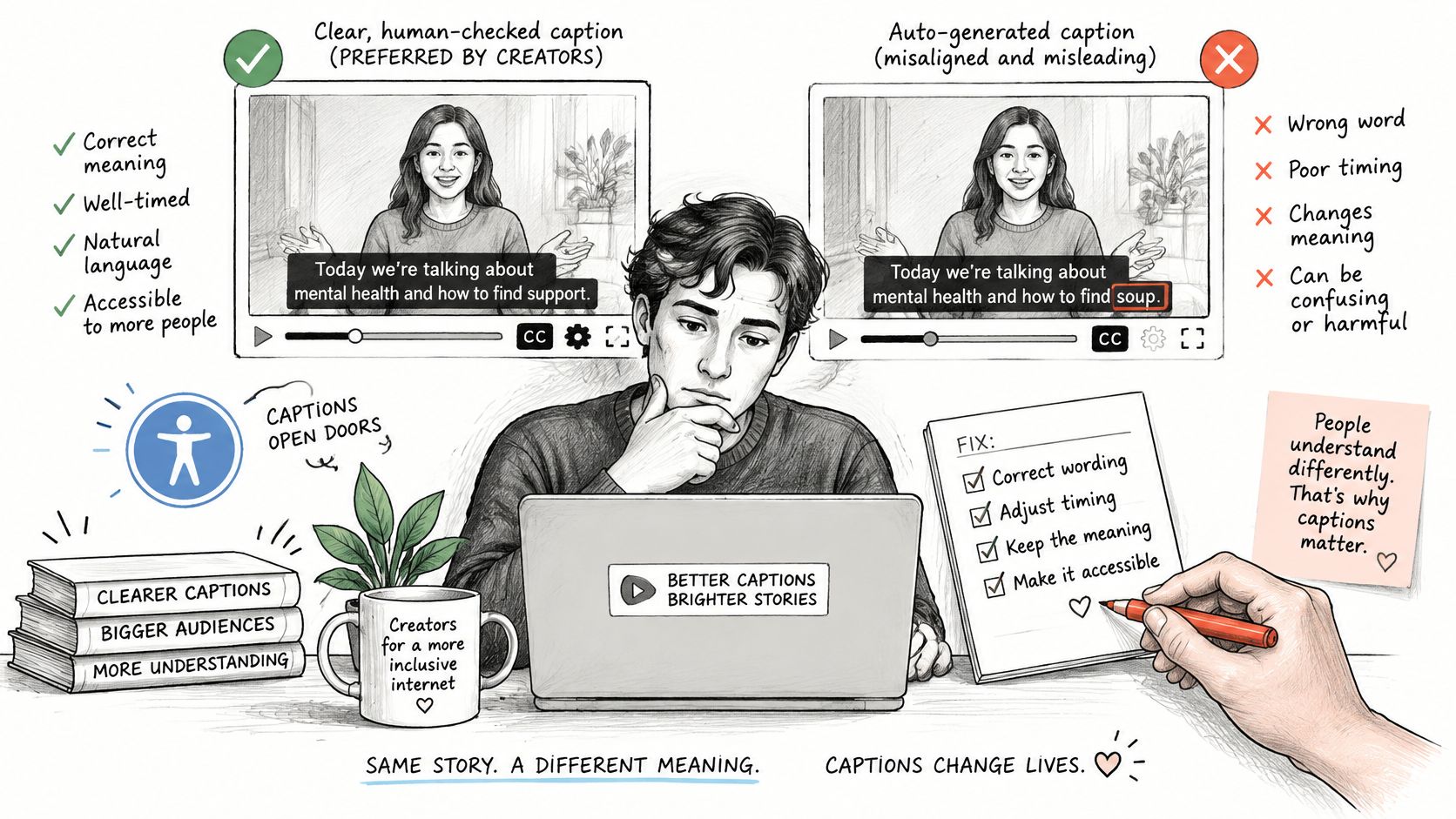
An animated caption can raise engagement while lowering comprehension. Words obscured by a graphic, over-emphasised syllables, text that appears a beat after it's spoken, or a font that turns to mush at arm's length on a phone all cost the viewer something, even when the style looks sharp on a desktop monitor.
What a Person Has to Verify
- Names and brand spellings. Product names, people's names and company names are where transcription fails most often, and where a mistake costs the most.
- Numbers, prices and dates. A dropped digit or a moved decimal is a claim you never intended to make.
- Dialect and code-switching. A model trained on broadcast English will smooth out the words that carry your speaker's identity, and sometimes the meaning with them.
- Emphasised words. Check that the word the speaker stressed is the word the caption highlights.
- Sentences where timing splits a claim. If "I wouldn't use this every day" arrives as two cards, the second one can read as the opposite of the first.
Three Tests Before You Lock a Style
Run each preset through the conditions your audience watches in. A phone screen at normal brightness, not full brightness, not a desktop monitor. A noisy recording, because room tone and wind change what the recognizer hears. A fast edit with short on-screen time, because a caption that lingers four seconds in the preview may sit on screen for one.
Score word accuracy and timing separately from how the style looks. A preset can be beautiful and still be wrong on the one word that matters, and that word is usually the product name. For anything legal, medical or culturally sensitive, put a person on the wording.
Automated editors usually pair caption generation with silence and filler removal, and removing filler words from a video is where timing errors enter fastest, because every cut shifts the words that follow it.
AI can style, place and time a caption. A person owns the wording.
Disclosure and Provenance You Should Keep
Two questions get muddled here, and separating them fixes most of the confusion. Detection estimates whether a piece of content is synthetic. Provenance records where this file came from and what happened to it since. A detector can flag a video without telling you what was changed. A provenance record can tell you exactly what was changed without answering whether the scene was real.
Neither problem is solved. A 2026 benchmark covering 72,000 evaluation samples, published in the ACM Digital Library, reported that no single tested provenance or watermarking method met the study's sufficiency threshold under realistic adversarial conditions, and that layered approaches performed better while still carrying limits. Watermarking in particular isn't a durable guarantee: marks weaken under heavy degradation, regeneration, super-resolution and other laundering steps.
Keeping that distinction straight is the whole job.
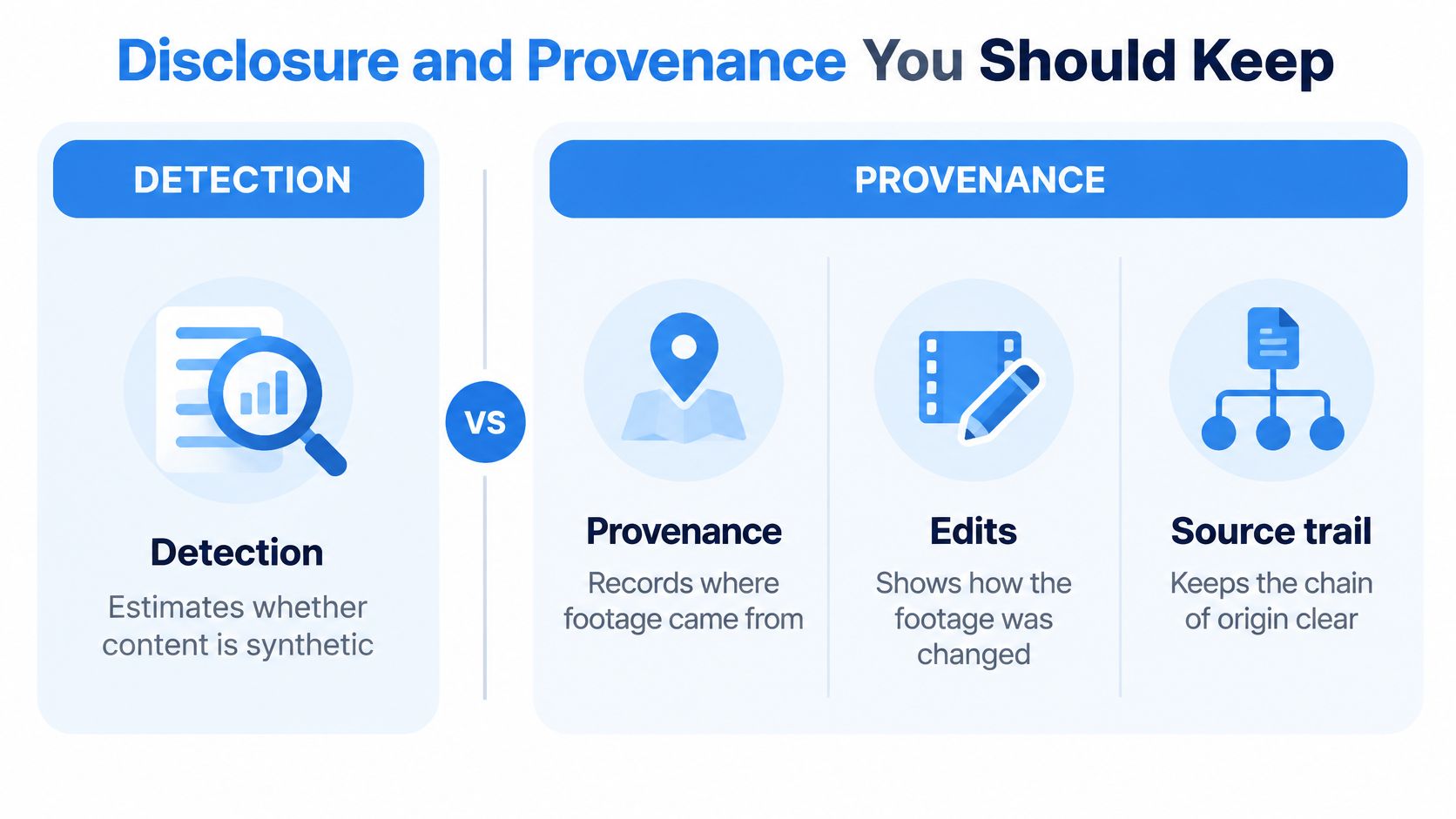
Four practical options are available, and they don't prove the same things.
| Method | What it proves | What it fails to prove | Survives resizing, captions and recompression |
|---|---|---|---|
| Signed provenance metadata | Where the file came from and its recorded edit history | That the recorded history is complete | Only while the metadata survives; platform re-encoding and re-uploads often strip it |
| Visible disclosure label | That the creator told viewers AI was used | That the footage is authentic or unaltered | Yes if burned into the picture; no if it lives in the caption field and the clip gets re-shared |
| Invisible watermark | A mark a compatible detector can read | That the content is authentic | Can be weakened by heavy degradation, regeneration or super-resolution |
| Human-kept edit log | Which tool touched which segment, and when | Anything about the file itself | Not embedded in the file; survives only if stored separately |
The Export Checklist
- Keep the raw original. Card dump or camera file, unedited, somewhere your editor can't overwrite it.
- Log every AI effect. Tool name, date, and the segment or timecode it touched. A plain text file beats memory three months later.
- Mark footage that was materially regenerated, or that shows a synthetic person, a synthetic location, or a place the crew never visited.
- Store the export settings. Resolution, frame rate, codec and bitrate tell a reviewer what the platform will do to the file after you.
- Don't read a missing label as proof. Unmarked footage isn't evidence of authenticity. It's evidence that nobody labelled it.
Accountability signal: a label records that someone agreed to be answerable for a video. It isn't proof the footage is untouched, and its absence isn't proof that it is.
Three Edits That Show the Right Balance
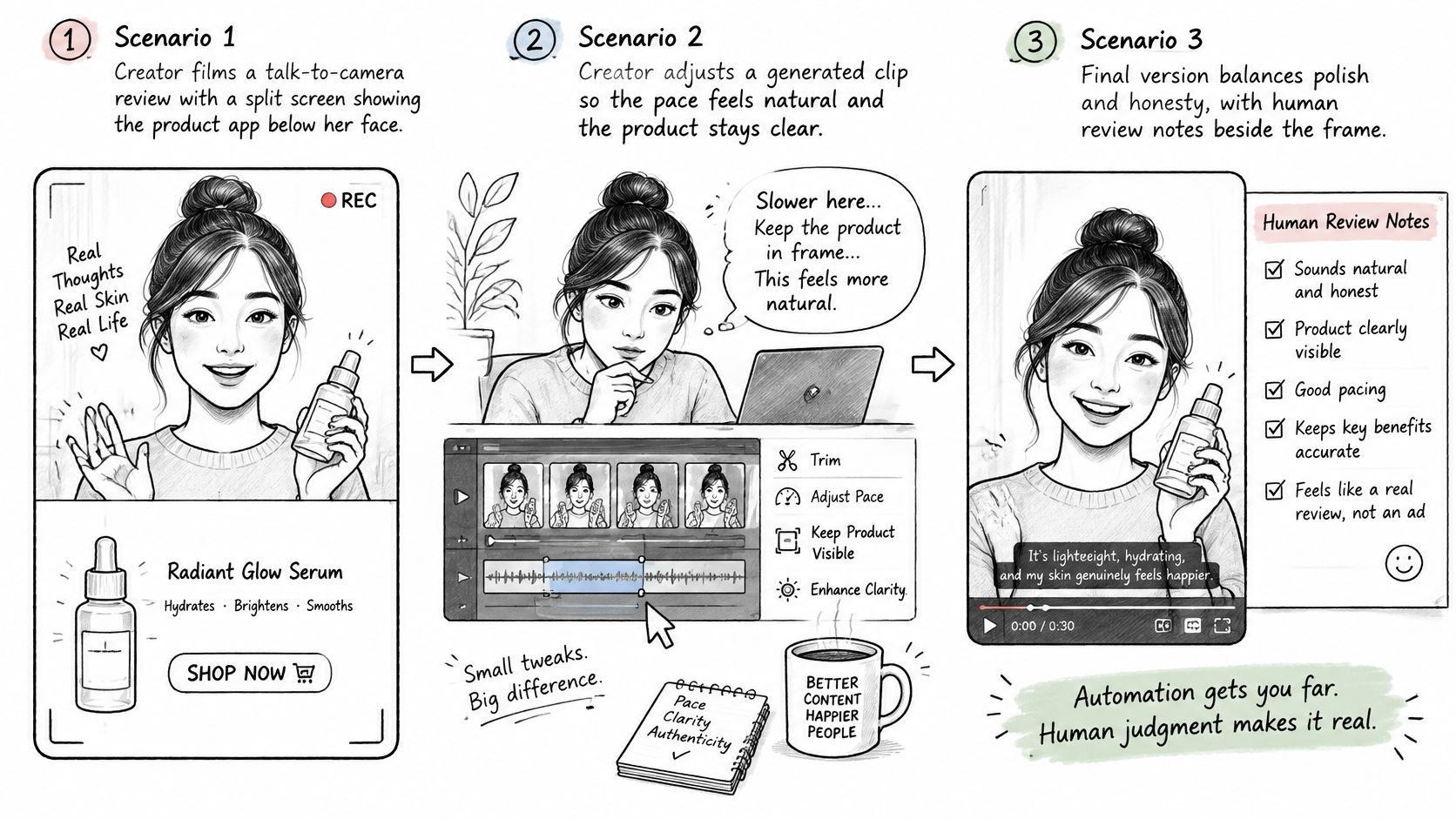
Risk doesn't live in the effect. It lives in the claim the finished video makes. Three scenarios, in ascending order of trouble.
A skincare creator reviews a serum on camera. She films a talk-to-camera review and adds a split screen with the product, automatic captions and silence removal. All of it is low risk: her words are her words, the footage is her footage, and the edits change pacing and layout rather than the record. The check is still real. Ingredient names, percentages and the brand's spelling have to survive transcription, and the split screen has to leave the label legible on a phone.
A home-services brand cleans up a job-site clip. The before-and-after footage is good, but a contractor's van sits in the corner of the "before" frame. Object removal erases it in ninety seconds. Medium risk, because a van in the frame is part of the record of that job, and a customer comparing before and after is being shown a tidier site than the one that existed. Disclose the removal in the caption, or keep the unedited clip where a customer can find it.
The gap between those first two cases and the third is where judgement lives.
A travel account fills a gap with generated footage. The account posts about a restaurant it recommends but never visited, and the street scene in the opening is generated to cover a missing shot. High risk. A viewer reads a street as a place, and the post now implies a visit that didn't happen. If the scene stays, it gets labelled as generated, and it never stands in for a location the account claims to have been.
What Each Case Teaches
- Presentation only, check the facts. When an effect changes layout or pacing, verify names and numbers and move on.
- Evidence changed, disclose it. When an effect alters the record of a job, a product or a person, say so in the post.
- World invented, label it and stop. When an effect creates a place, a person or an event, label it and never present it as something you witnessed.
Confirm the Edit Before You Publish
Automated output can contain mistakes, including in transcribed captions, so the last pass belongs to a person. Run six checks, in this order, the way a colorist signs off a grade: shot by shot rather than the whole film at once.
- Watch it muted. Read every caption and text block the way a viewer will, and confirm names, numbers, prices, dates, dialect and emphasis against the verification list you'd use on any caption job.
- Watch it with sound. Follow the audio word by word against the captions, and confirm that video and audio stay in sync after each cut, since silence removal is what most often knocks them apart.
- Scrub every cut. Effects should stay attached across edits. Anything that vanishes or drifts at a transition needs re-anchoring on that shot.
- Zoom in on the edges. Look at the speaker's hairline and the masked product at 200%, checking the boundary line and the untouched pixels beside it, the same way you'd inspect a matte edge before a composite ships.
- Run the disclosure pass. For each effect in the finished video, ask whether it changed what the viewer believes happened. If yes, the edit log records it and the post says so.
- Save before you export. Keep the raw file plus the edit log in a folder separate from the render output, so any later question about what changed has a paper trail.
That routine is what Mimic's workflow assumes: you pick a UGC style, drop in your clip with any demos or images, and get back a captioned, cut video, with the expectation that you review it before publishing because the automation can be wrong. On the training question, which comes up with every tool: videos you upload to Mimic are used only to make your edits and are never used to train AI models. Ask any other editor the same question, and read the answer in its own terms rather than assuming it matches.
The decision rule is short. If an effect changes what the viewer believes happened, disclose it or drop it.
Mimic turns a raw talking-to-camera clip into a captioned, cut UGC video in the style you choose, with the cutting, word-timed captions and product shots handled in one pass so your time goes to the checks that need a person. You still own the judgement calls: read the captions, inspect the tracked effects, keep the edit log, and decide what gets disclosed before anything goes out. If you'd rather test it on real footage than read about it, start with one clip in Mimic.