Best App to Put Videos Together: 10 Tools Compared
Need an app to put videos together? Compare 10 editors for combining clips, captions and UGC edits — plus how to pick the right one for your device.
Why do so many roundups assume putting clips in order is the whole job? You've probably got a hook take, two product shots, a screen recording, and a close sitting on your phone right now, with a post due today. Joining them takes a minute. Making them watchable, captioned, and consistent with your last ten posts takes much longer.
That's the gap this list sorts by. Some tools below are simple mergers for a one-off sequence. Others are full timelines, transcript editors, or, at the top, a browser app to put videos together that also handles the repetitive UGC styling for you.
Your real decision comes down to three things. Do you work phone-only, in a browser, or on a laptop? Do you want a hands-on timeline or an automated first edit? And is this a single merge or a repeatable format you'll ship every week? People already spend an average of 11 hours and 39 minutes per week consuming online video across platforms such as YouTube and TikTok, according to DataReportal's July 2025 global snapshot, so viewers won't wait through dead air while you get to the point.
Skim by situation, not feature count. The right pick is the one that matches how you shoot.
1. Mimic
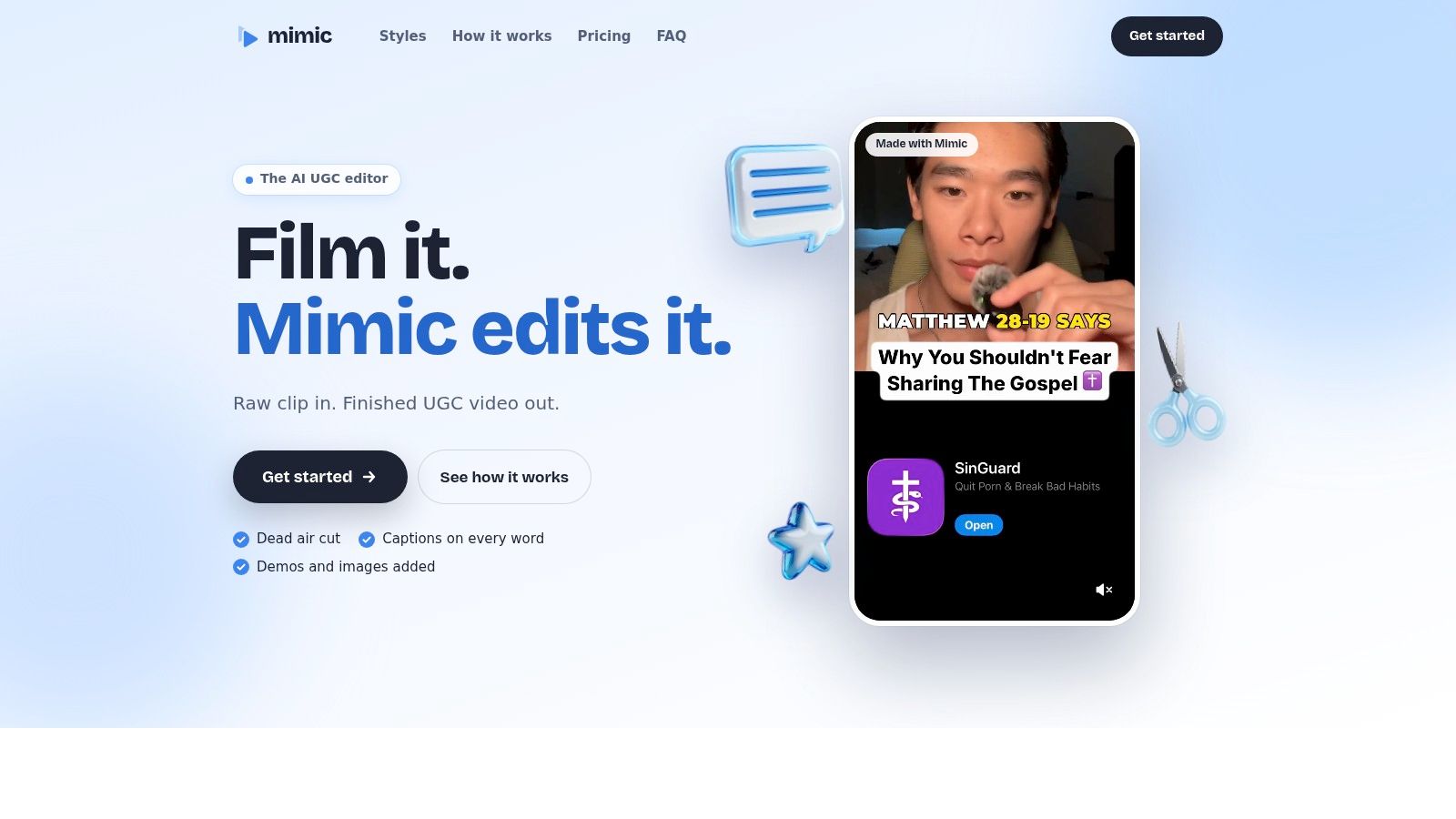
We built this for one specific job, turning raw talking-to-camera footage into a finished UGC video without you rebuilding the same edit by hand. You pick a built-in style, drop in your clip plus any demos or images, and receive a captioned, cut video ready to post. It's the only tool here where assembly and styling happen in the same pass.
What happens to your clips
We transcribe your speech, trim pauses, filler words, and false starts, and sync captions to each word. Product photos, demonstrations, and screen recordings sit alongside your main take rather than staying as separate files. Depending on the style, you also get matched cuts, zooms, cards, and sound effects.
- Style matching: We learn a reference video's caption look, pacing, cuts, and effects and apply them to your footage. None of that reference footage ends up in your video.
- Editable output: Captions, cuts, timing, and sounds can all be changed, or you can request a fix in plain language.
- Team consistency: Shared styles and product assets give every creator's clip the same captions and pacing.
Annual pricing is $280 for Creator at 100 new videos per month or $480 for Studio at 300 per month. Editing and re-exporting don't use another allowance, but unused videos don't roll over. Your footage is used only to create edits, not to train AI, and you can delete it.
Where we fall short: We're built for talking-to-camera UGC, not general-purpose editing, and reference videos must be yours or used with permission. See our editor and plans for the full style list.
2. CapCut
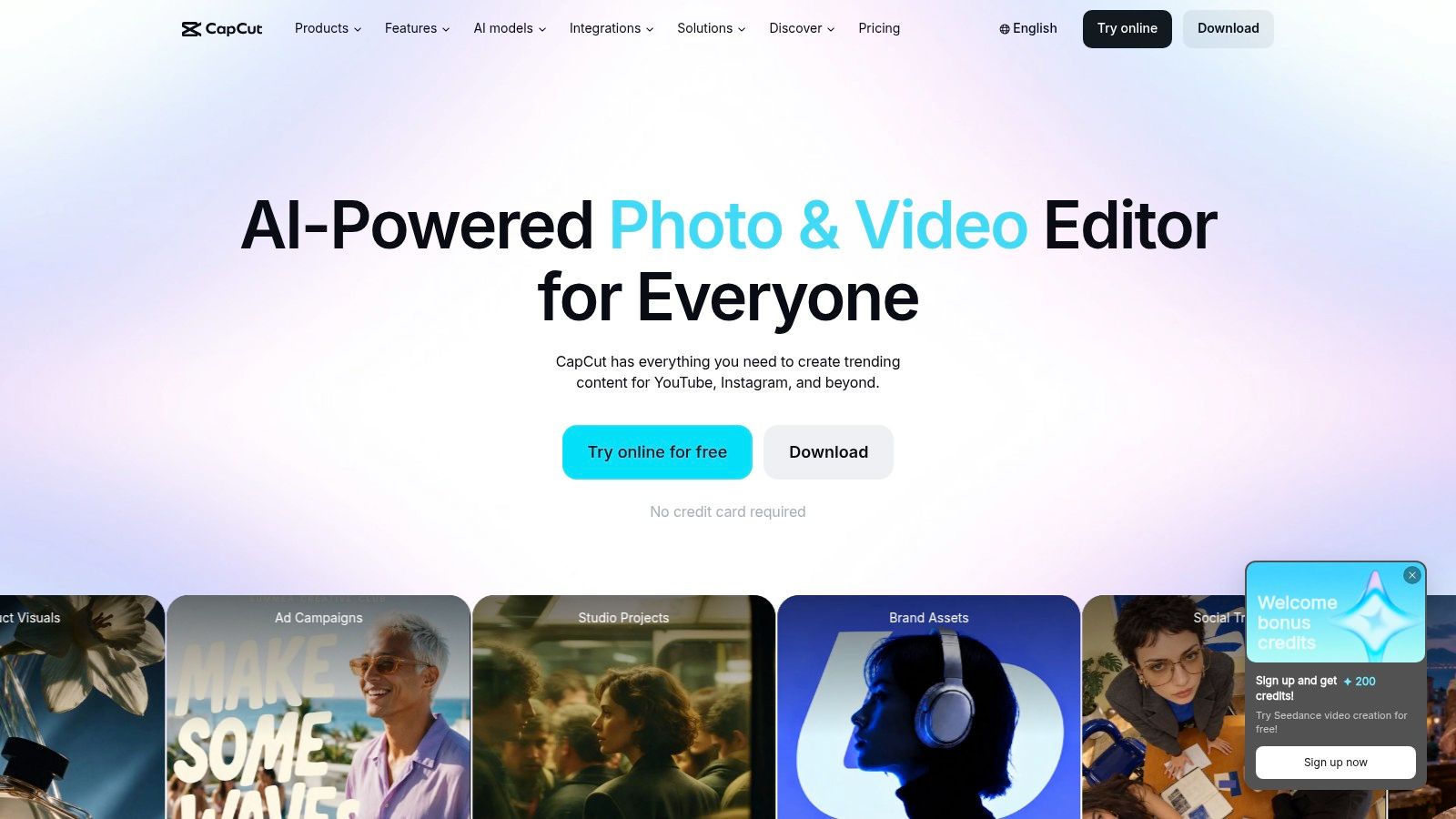
Combining clips on a phone between shoots is where CapCut earns its place. The browser, desktop, and mobile versions all handle basic assembly plus captions, effects, transitions, and resizing. You arrange, trim, split, and merge clips on a familiar timeline, then export with resolution and frame-rate settings. For a solo creator cutting varied social formats, that flexibility covers nearly everything.
That breadth is also the catch. Producing the same UGC format daily means repeating the setup yourself, hunting through menus for the caption style you used last time. It's easy to start, harder to keep consistent at volume.
Check your source clips before you merge. Mismatched resolution, frame rate, or aspect ratio between files shows up as blur or cropping in the export, so standardize everything to one shape first.
- Best for: Solo creators who enjoy hands-on control and lots of effects.
- Watch out for: Some features and assets sit behind a paid plan, and repeatable multi-creator formatting takes manual discipline.
The free online merger page works without a credit card, which makes it a low-risk first try.
3. Microsoft Clipchamp
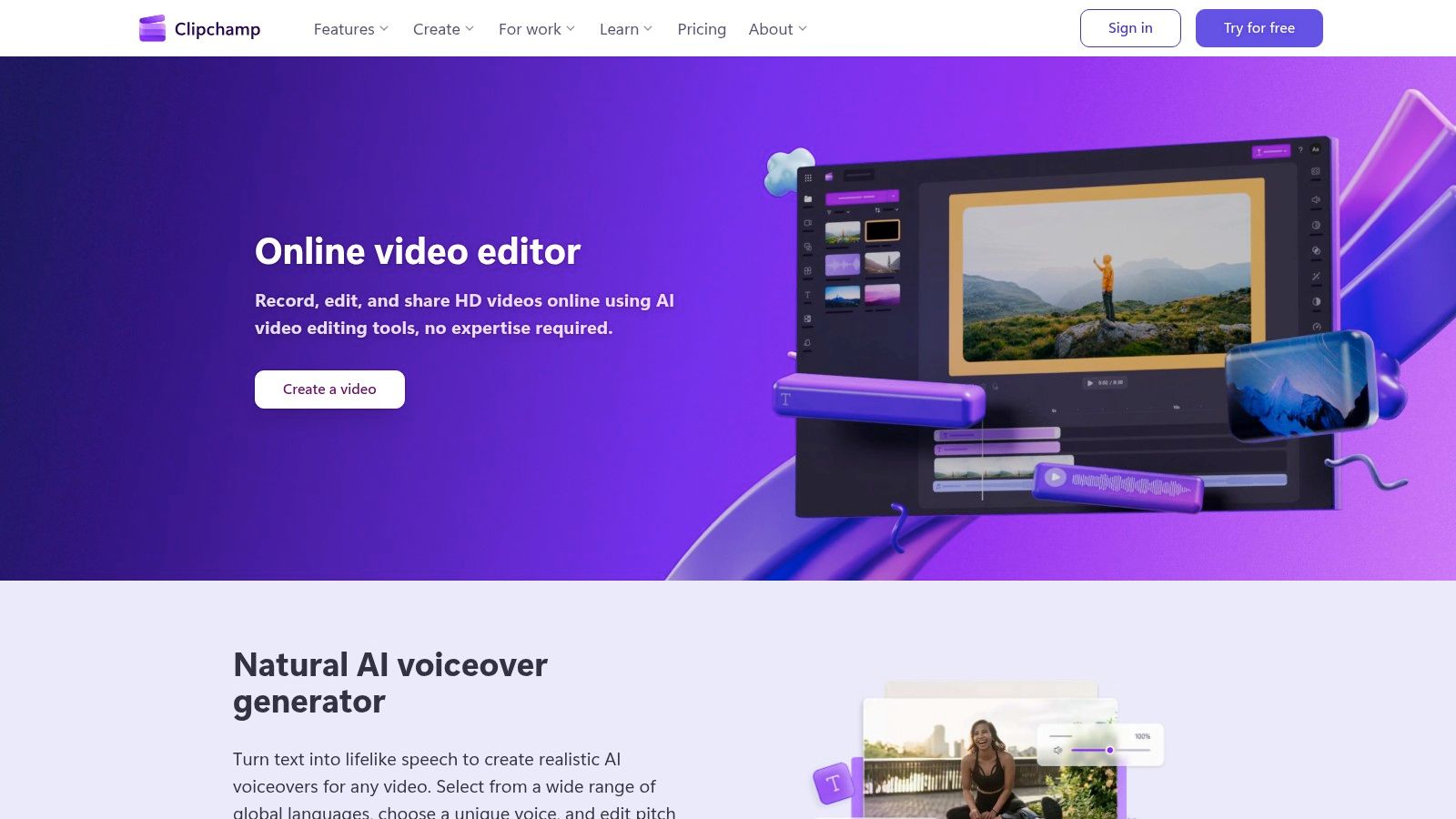
Say you just need clips combined cleanly on a laptop, with no watermark and no software install. Microsoft Clipchamp does that job well in a browser or as a Windows app. You drop video, images, audio, GIFs, and stickers onto a simple timeline, then trim, crop, rotate, resize, and add effects.
The free plan is the draw here. It allows unlimited projects and exports up to 1080p without a watermark, which several rivals below don't match. AI subtitles and silence removal cover the basics of talking-head cleanup without much learning curve.
Practical rule: If your clips only need joining and light cleanup, don't pay for a styling system. A clean free export beats a fancy template you'll use once.
Premium stock assets and some features require Microsoft 365, so check what's locked before you build a project around a specific asset. It's also a general-purpose editor rather than a dedicated UGC styling system, so caption formats and pacing stay manual.
If you're weighing free browser options more broadly, this guide to free AI video editing tools and their limits pairs well with a Clipchamp test run. For straightforward assembly on a deadline, I'd start here before paying for anything.
4. VEED
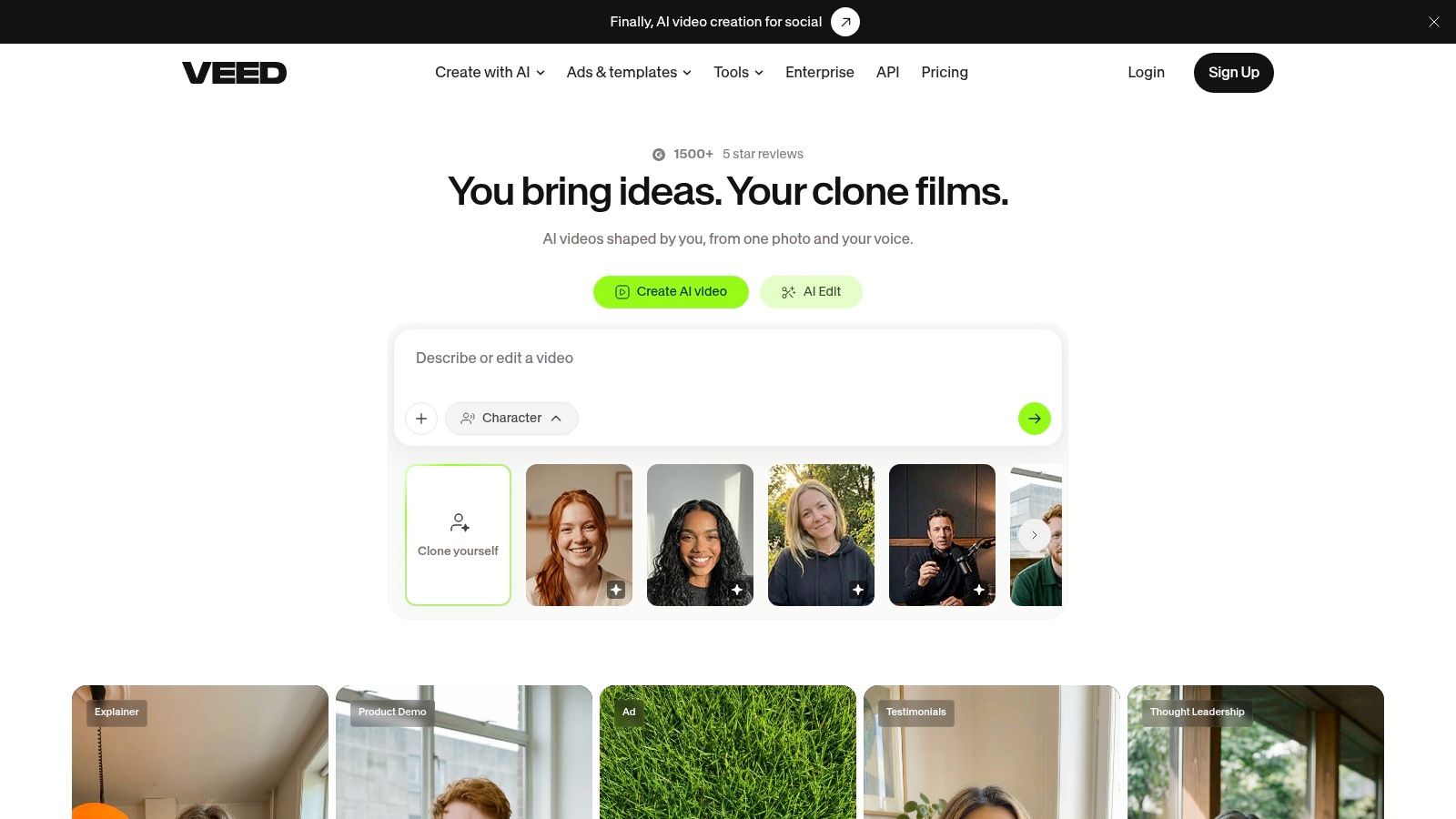
VEED suits creators who'd rather stay in a browser tab than install anything. Drag-and-drop editing and clip trimming cover assembly, while auto-subtitles and transcript-based tools handle the captioning side. Resizing for different platforms is built in, which helps when one cut needs to ship to several channels.
Collaboration is where it pulls ahead of simpler mergers. Review features let a client or teammate comment before you export, instead of trading exported files back and forth. iOS and Android apps extend that workflow to your phone when you need a quick fix away from your desk.
The free tier has a real ceiling, though. Free exports carry a watermark and top out at 720p, so treat the free version as a trial, not a production plan. Paid features and AI allowances also vary by plan and billing option, which means you should price your actual monthly volume before committing.
Who should pick it
Choose VEED if browser access, subtitles, and client review matter more than deep timeline control. Skip it if you export daily and don't want allowance maths shaping how you edit. For occasional captioned videos with a reviewer in the loop, it's a sensible, tidy option.
5. Descript
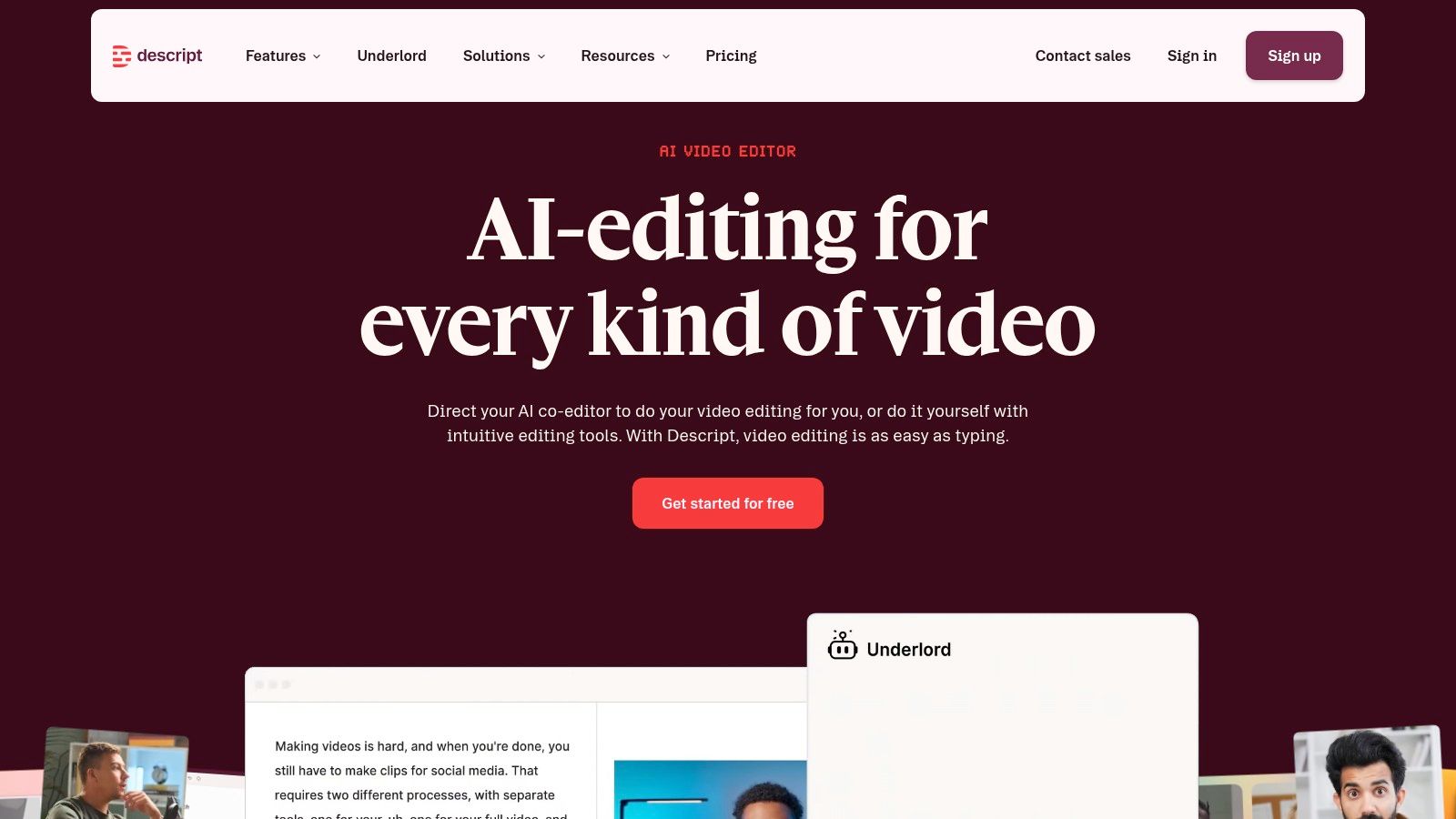
Descript flips the usual workflow. It transcribes your recording, and you edit the video by editing the text. Delete a sentence in the transcript and the corresponding footage goes with it, which feels natural if you think in words rather than waveforms.
For speech-heavy content, that approach is fast. Automatic transcription, dynamic captions, filler-word removal, and audio cleanup are integrated rather than bolted on. Team plans and shared workspaces help when a transcript needs approval alongside the cut itself.
Don't trust the automation blindly, though. Automated cuts and filler removal can clip word endings or remove a pause you wanted for emphasis, so budget a review pass. AI and media allowances also depend on your subscription plan, which matters if you process long recordings often.
If cleaning up speech is your main bottleneck, this walkthrough on removing filler words from video shows what to check after any automated pass. Descript is strong for podcasts, interviews, and explainers. It's less focused on quick, style-led UGC, where the visual format matters as much as the words. Pick it when the transcript is the product, not just the captions.
6. Kapwing
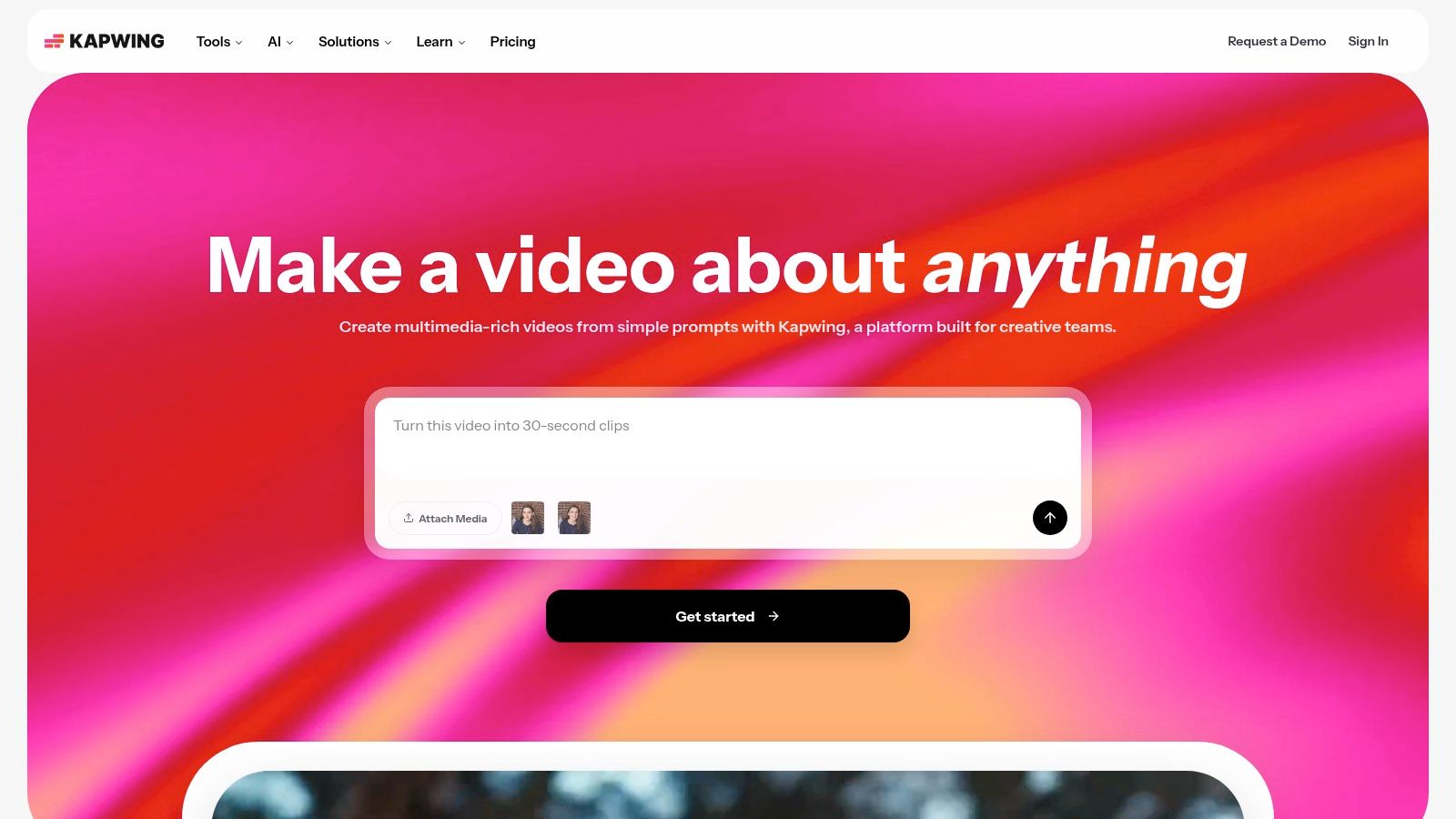
Sometimes you don't want an editor at all. You want a merge button. Kapwing has a dedicated merge tool for uploading, arranging, trimming, and exporting clips in a browser timeline, and that directness is its appeal.
Once clips are joined, you can keep going in the same place. Subtitles, a shared brand kit on paid plans, and AI tools for repurposing turn a quick merge into a finished social post. It runs on desktop and mobile browsers, so there's nothing to install and no project stranded on one device.
- Free tier reality: Exports include a watermark and are limited in length and resolution.
- Paid tier value: Unlimited projects and watermark-free exports.
- Usage caveat: Some AI actions consume credits, so costs depend on which tasks you run.
That credit model suits occasional use better than daily production. If you only merge footage a few times a month, you won't feel it. If you're cutting variations for ads every day, track credit burn early.
Kapwing also handles layout tricks once clips are combined, and this guide to making a split screen video shows a common next step. For find-it-fast browser merging, it's hard to get lost here.
7. Adobe Express
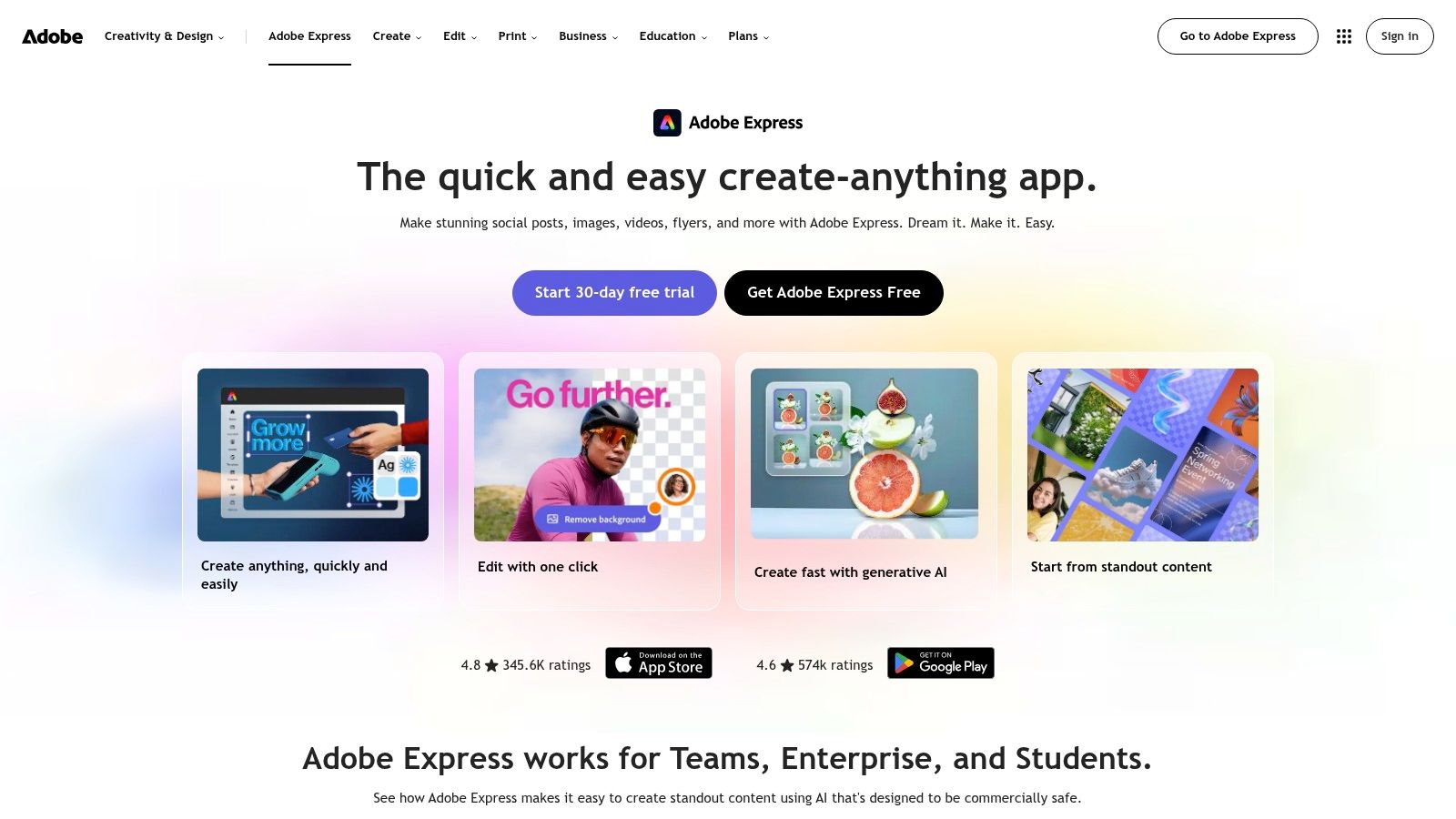
For a fast montage in a browser, Adobe Express keeps the job narrow. Upload video clips and images, arrange the order, trim the ends, fit footage to the frame, and download one file. The merger is free to use without a credit card and runs in desktop and mobile browsers.
The limits show up as soon as the job gets more specific. You can mute clip audio and reorder a sequence, but there is no talking-head automation, no transcript editing, and no shared style system to keep a series consistent. Merged clips can move into a fuller Adobe Express project afterward, so it works as a front door rather than a dead end.
A merger that finishes in two minutes and exports cleanly beats a powerful editor you abandon halfway through learning.
Plan around browser upload caps: long or high-resolution sources may need trimming or compressing before they will go through. Short social clips rarely hit that wall.
Reach for it when the brief is simple assembly, three clips into one clean file today with no captions or effects requested. Add pacing, captions, or repeatable branding and you will outgrow it quickly.
8. InShot
If your laptop rarely opens, InShot is built for how you already work. You join, trim, and arrange clips on a phone or tablet, then add text, music, stickers, and effects before exporting for social platforms. Auto-captions and an AI Cut feature for removing silence, filler words, and breath sounds cover the talking-head basics.
That mobile-first focus matches where editing is heading. The Industry Research phone video editing app market report estimates that about 61% of Gen Z users edit directly on phones rather than desktops, and that more than 45% of digital creators use at least one mobile editing application daily. Treat those as directional, but the behavior is real.
The trade-off is collaboration. Editing lives on one person's phone, not in a shared browser workspace, so handing a project to a teammate or matching another creator's format takes extra steps. Paid tools and content also sit behind in-app purchases, with monthly, yearly, and lifetime Pro options.
Its App Store listing showed a 4.8 out of 5 rating from 2.5 million ratings when checked, which suggests the basics are solid. For a solo creator shooting and posting from one phone, that's often enough.
9. VN Video Editor
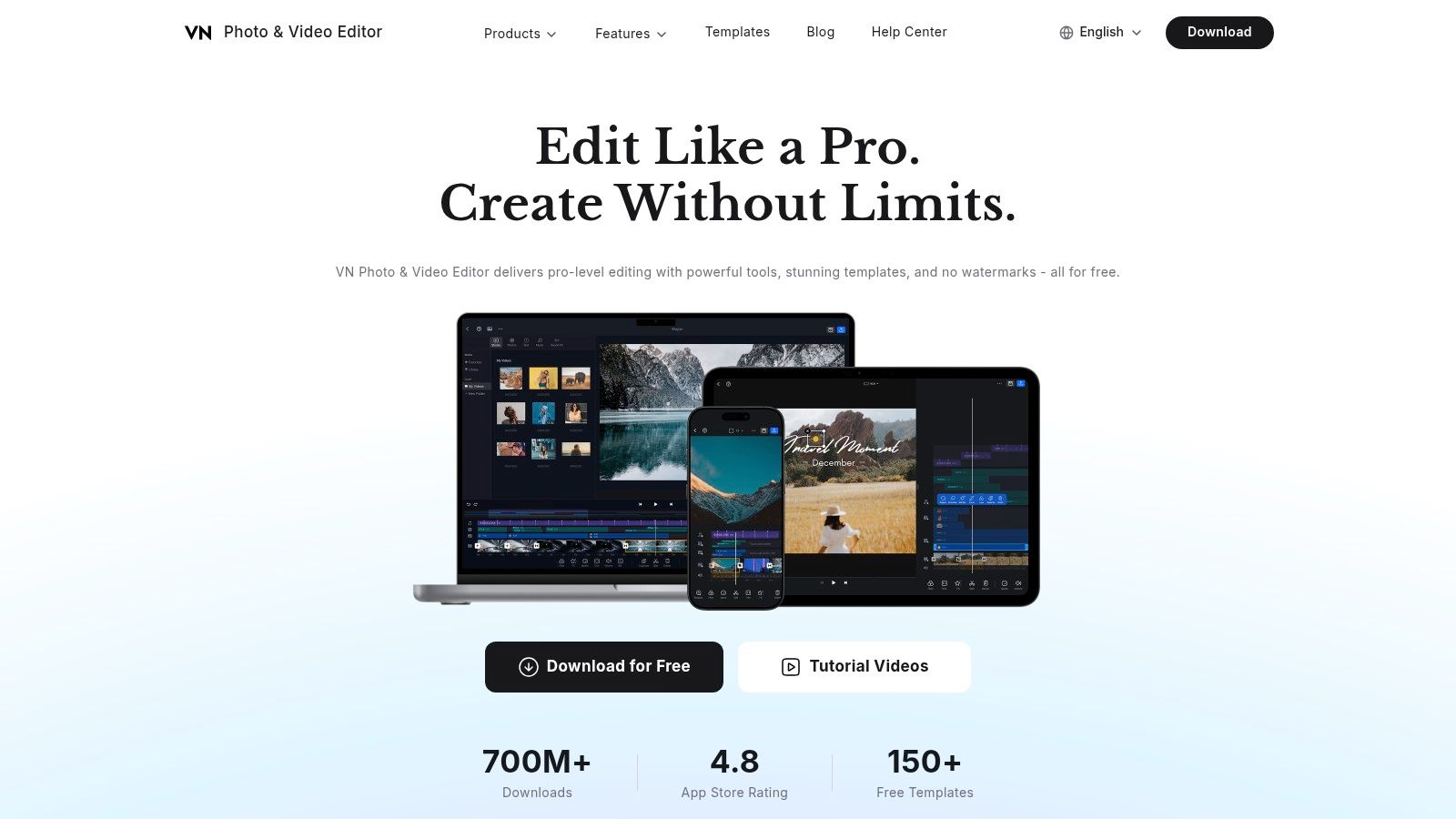
Some creators want to place every cut themselves, and VN Video Editor is built for them. Its multitrack timeline gives phone editing a desktop-like level of precision, handling video and other media layers that simpler merger apps can't manage. Auto-captions, caption templates, and beat-synced templates round out the social toolkit, and exports are listed as supporting up to 4K at 60 fps.
That control comes with a cost. Layered edits with overlays and timed text are exactly what a multitrack editor invites, and heavy overlay-based projects can lag on older phones. Keep layers to a minimum if you want smooth previews, and expect choppy playback once a project stacks up tracks.
The workflow is also app-based rather than a shared browser workspace, so handing a project to a teammate or matching a brand style across creators isn't its strength. One more limit worth knowing: a 4K export can't restore detail that a low-resolution source clip never captured. It just makes a bigger file.
I'd pick VN when you want free, precise, phone-based timeline editing and the project never leaves your own hands.
10. iMovie
If your clips already live on an iPhone, the simplest merge tool is probably installed. iMovie is free across iPhone, iPad, and Mac, and it combines, reorders, and trims clips with titles, transitions, music, and effects. Projects move between your Apple devices, and exports reach 4K on supported devices.
Guided formats cut the effort further. Magic Movie assembles a video from photos and clips you select, and Storyboards give you a shot-by-shot structure to fill in. A family montage or a tidy product sequence comes out polished without any timeline skill.
The ceiling shows up fast for working creators. iMovie only runs on Apple hardware, so a team mixing Android and Windows can't standardize on it. There is no automated caption styling and no shared format that keeps one creator's video looking like the next, so recurring UGC means repeating the same manual steps on every clip.
The verdict for Apple households
iMovie is widely used by Apple owners and holds up as a dependable, if basic, editor. I'd keep it for quick merges, family videos, and clean one-off sequences where nothing needs to match a brand look. Once you need styled captions, consistent formatting across contributors, or anyone outside the Apple ecosystem, the manual overhead tells you it is time to switch.
All 10 apps for putting videos together at a glance
Read the "Best for" column first. It matters more than any feature list, because the right pick depends on the job you're doing week after week.
| Platforms | Best for | Standout feature |
|---|---|---|
| Mimic, phone and desktop browsers | Repeatable, style-led UGC videos | Automates speech cleanup, word-timed captions, and style-matched edits |
| CapCut, browser, desktop, and mobile | Flexible social video editing | Broad selection of effects, transitions, captions, and editing tools |
| Microsoft Clipchamp, browser and Windows app | Basic clip assembly and cleanup | Unlimited free exports up to 1080p |
| VEED, browser, iOS, and Android | Browser-based editing and collaboration | Combines subtitles, transcript editing, and social resizing |
| Descript, desktop and web workspaces | Talking-head and speech-heavy videos | Edit video by editing its transcript |
| Kapwing, desktop and mobile browsers | Browser-based clip merging and social edits | Dedicated merge tool and shared brand kit on paid plans |
| Adobe Express, desktop and mobile browsers | Quick montages and simple sequences | Merge clips and images, then continue editing in Express |
| InShot, phone and tablet | Short social videos edited on mobile | Auto-captions and AI tools for removing silence and filler |
| VN Video Editor, mobile apps | Hands-on short-form video editing | Multitrack timeline, auto-captions, and templates |
| iMovie, iPhone, iPad, and Mac | Basic video editing for Apple users | Magic Movie and Storyboards provide guided video creation |
Free tiers differ on watermarks, and that detail decides whether a free plan is usable. Clipchamp exports without a watermark at up to 1080p. VEED and Kapwing stamp their free exports, so posting client work or branded content from either means paying. For a one-off merge that may not matter, but for weekly output it turns a "free" tool into a subscription in disguise.
Choosing Your App by Matching the Tool to the Job
Start with your device, because it rules out half the list. Phone-only creators get the most from InShot or VN, where shooting and editing never leave the device. Apple households can lean on iMovie, and anyone who switches between phone and laptop should favor browser tools like Clipchamp, VEED, Kapwing, or our own editor, where a project isn't trapped on one screen.
That cross-device point matters at market scale, too. Mordor Intelligence's video editing software market report values the global market at approximately $3.75 billion in 2026, projected to reach $5.32 billion by 2032, with smartphone and tablet software forecast to grow at an estimated 8.8% CAGR through 2032. Tools that only work in one place will keep feeling narrower.
Next, be honest about skill and patience. A hands-on timeline rewards people who enjoy placing cuts, and it punishes everyone else with unfinished drafts. If editing is the part you avoid, choose an automated first edit you can adjust, whether that's transcript editing in Descript or a style-based pass from us. You'll finish more videos, which matters more than owning features you never open.
Finally, separate one-off merges from repeatable production. Joining three clips once needs Kapwing or Adobe Express and nothing more. Producing talking-to-camera UGC every week is a different problem, where shared styles keep every creator's clips on the same captions and pacing, and videos exported with our built-in styles can be used commercially. Our free tools, a hook generator, safe zone checker, teleprompter, and UGC rate calculator, also help before you combine a single clip.
Before you commit to any app to put videos together, answer these three questions.
- Where do I edit: On my phone, in a browser, or only on Apple devices?
- What eats my time: Joining clips, or captions, cuts, and keeping a consistent look?
- How often do I ship: Once in a while, or on a schedule a format could carry?
Your answers point to one row in the table above. Pick that tool, finish one real video with it today, and only switch if that finished video shows you a problem a feature list couldn't.
If your clips are talking-to-camera UGC that needs captions, tight cuts, product shots, and the same look every time, we built Mimic to turn that raw footage into a ready-to-post video from your phone or laptop browser. Pick a style, add your clips and demos, adjust anything you like, and post the finished edit today.